
Admin and the organisation
People, companies, the working week, tags, templates, features, security, billing and data.
Administrators see Admin in the sidebar. It has four areas, as tabs across the top: People, Companies & contacts, Organisation and System.
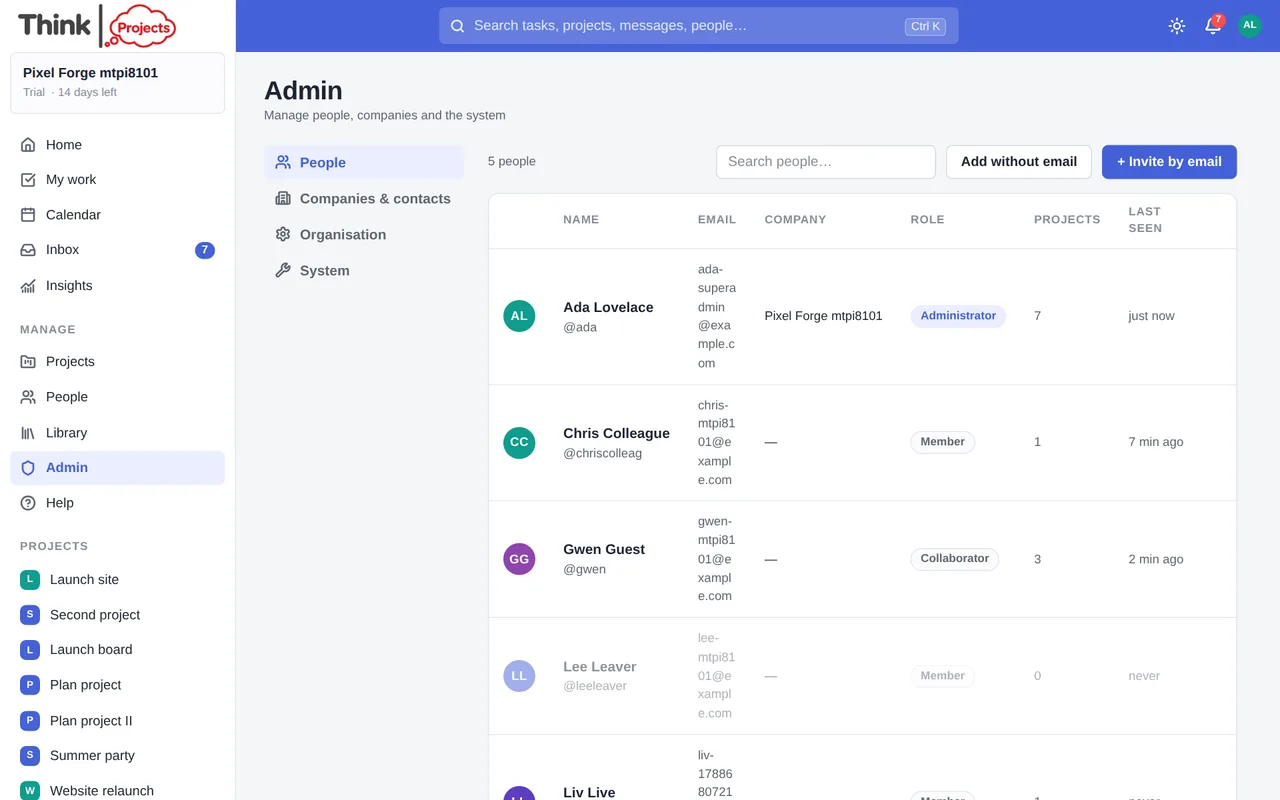
People
Everyone in the organisation: role, company, how many projects they are on and when they were last seen. From here you invite people, add someone without email, edit their details and role, reset a password, disable or delete an account, and view as them. A person's ⋯ menu also has Time off… — set the days they are away on their behalf — and Working hours… for a part-timer's own week: their tasks then take as long as those hours allow, and Workload measures them against it. Pending invitations are listed at the top with Resend and Withdraw. See People, companies and guests.
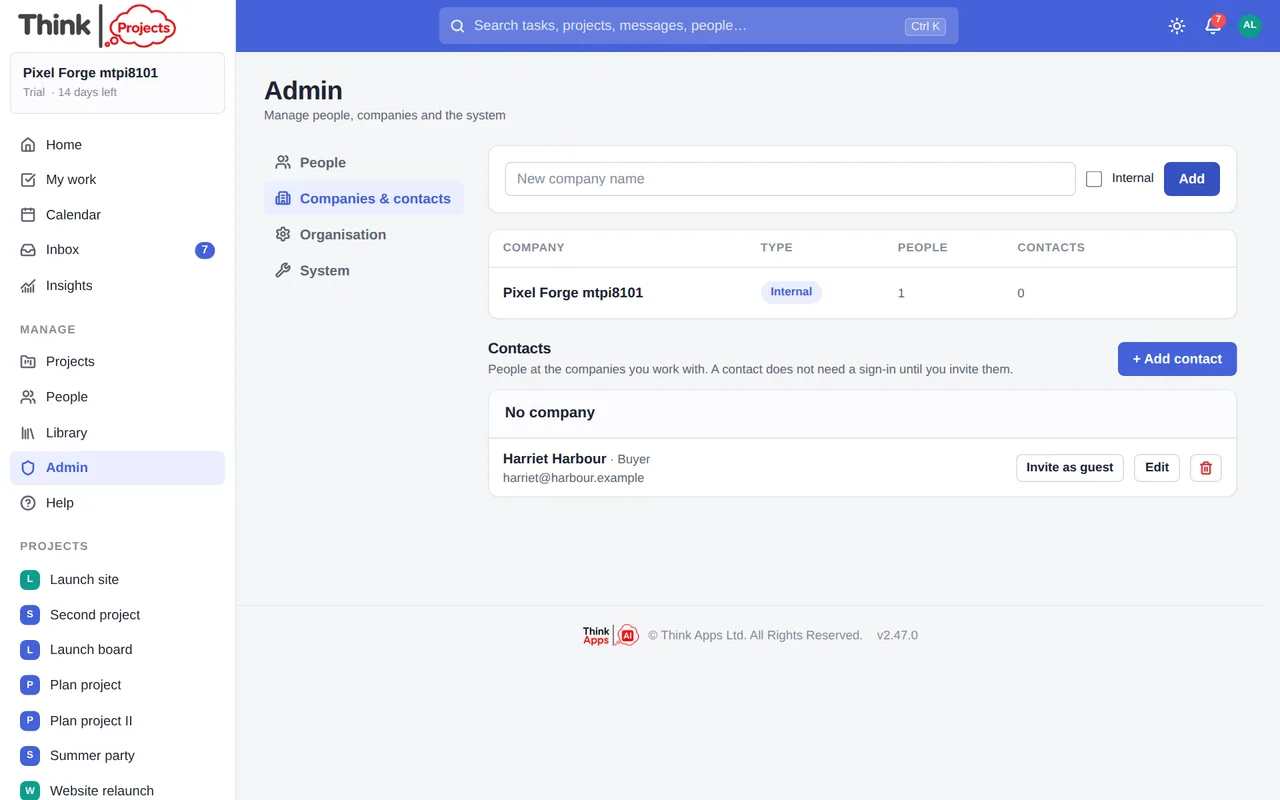
Companies and contacts
Your own company (marked Internal) and the clients and suppliers you work with. Contacts are people at those companies who do not have a sign-in yet — a name, a title, an email and a phone number — and can be invited as a guest when needed.
A contact who has emailed a project shows N conversations: click it to unfold every email conversation with them, where each stands and who is looking after it — the history with that customer.
Organisation
General
The organisation's name, its logo (shown in the sidebar for everyone in the organisation — your team's sign-in link is here to copy), and the default typeface everyone starts with — from the same free list as My settings → Appearance; anyone can still choose their own.
Work
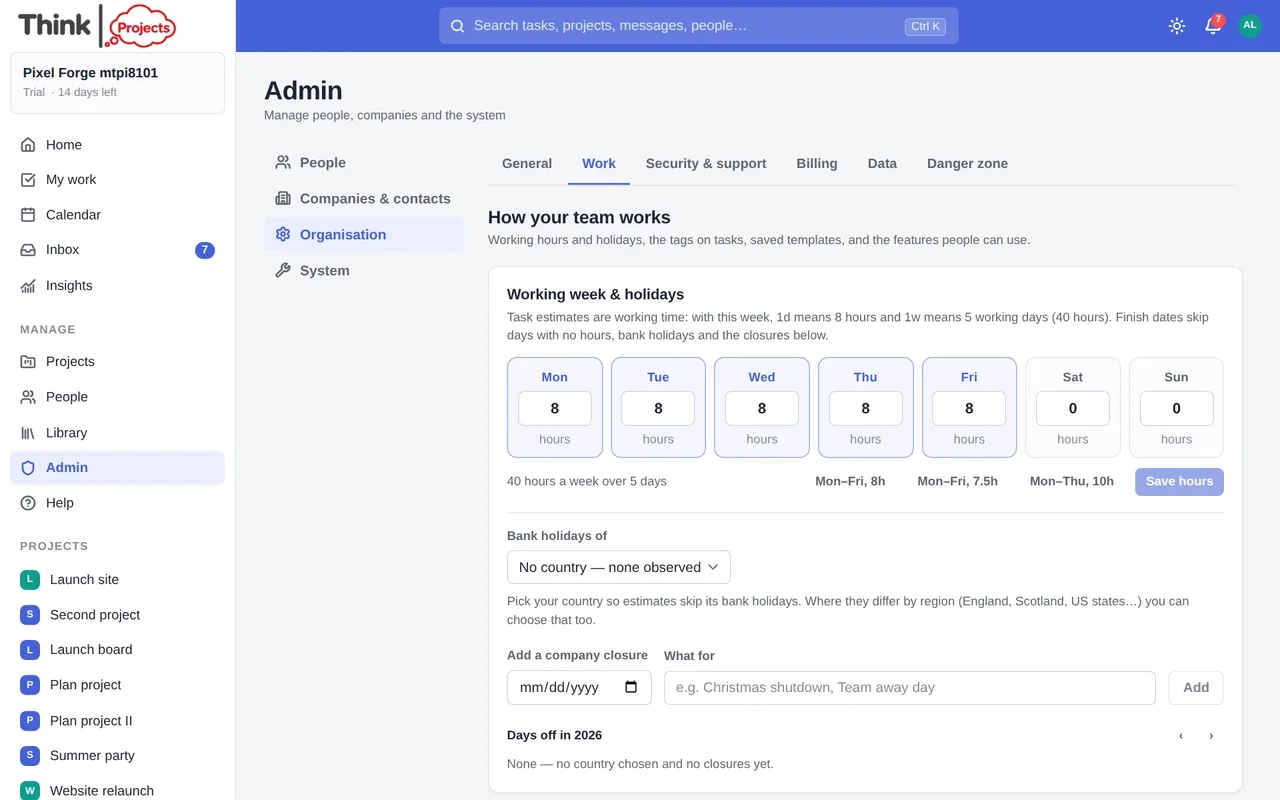
- Working week and holidays — hours for each day of the week (presets for Mon–Fri 8h, 7.5h and Mon–Thu 10h), the country whose bank holidays to observe, and company closures such as a Christmas shutdown. Estimates, finish dates and the timeline all follow this.
- Time off — add time off for anyone, and see who is away.
- Tags — make, rename, recolour, merge or delete the organisation's tags.
- Templates — rename, describe or remove saved project and task templates.
- Saved replies — the team's reusable answers, with how often each is used; add, edit or remove them here. Anyone on the team can save one from a post's bookmark and pick one from any reply box — see Messages → Saved replies.
- Features — switch GIFs and time tracking on or off for everyone.
Security and support
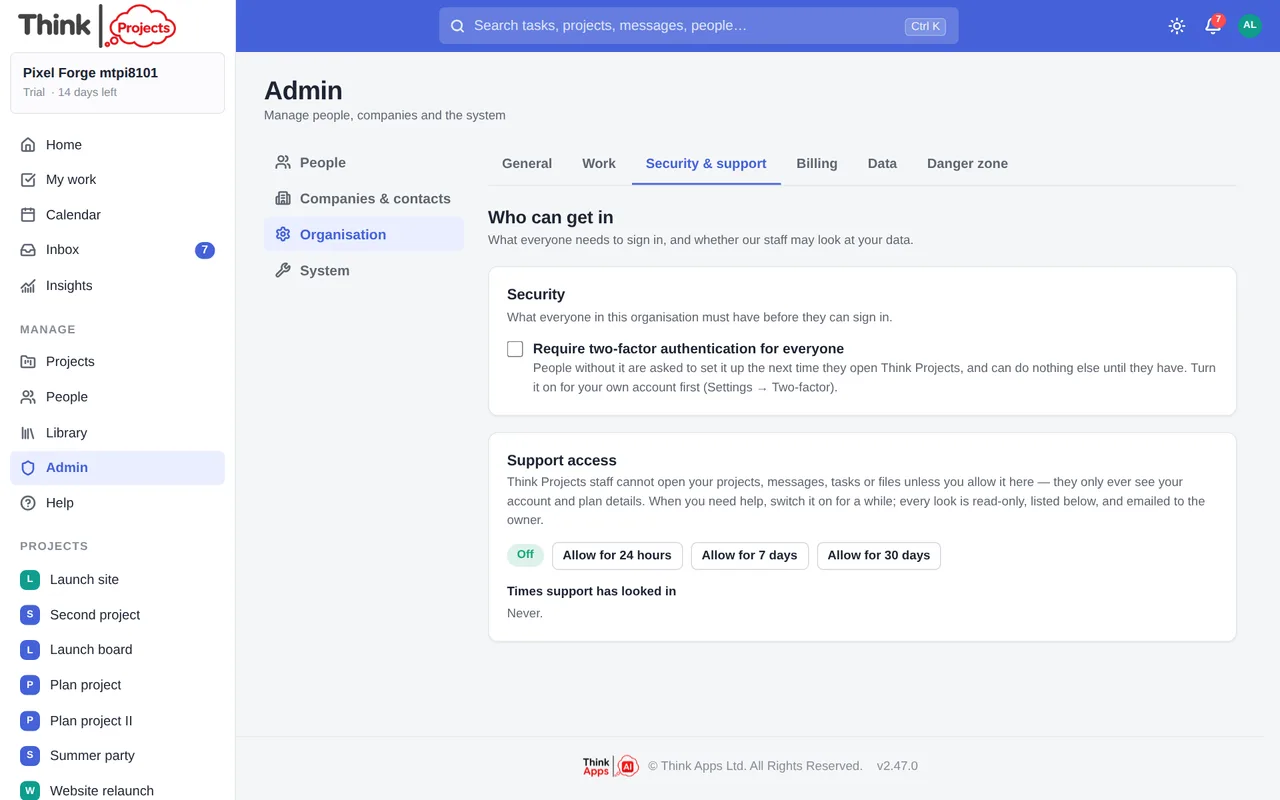
- Require two-factor authentication for everyone — people without it are asked to set it up the next time they open the app. Set up your own first. Only the owner can turn the requirement on or off.
- Support access — off by default. Think Projects staff cannot open your projects, messages, tasks or files unless the owner allows it here, for 24 hours, 7 days or 30 days. Every look is read-only, listed on this page and emailed to the owner.
- Blocked senders — email addresses whose mail to your projects is dropped. Managers add to it with Block on an email conversation; administrators add and remove addresses here. See Messages → Email conversations.
Billing
Your plan, the trial or renewal date, and three bars — storage, team members and projects — against the plan's limits. Guests are free and do not count as team members. Choose or change a plan here; payment is by card through Stripe, monthly or yearly (yearly gets two months free), and you can cancel at any time. Manage billing opens your invoices and card details.
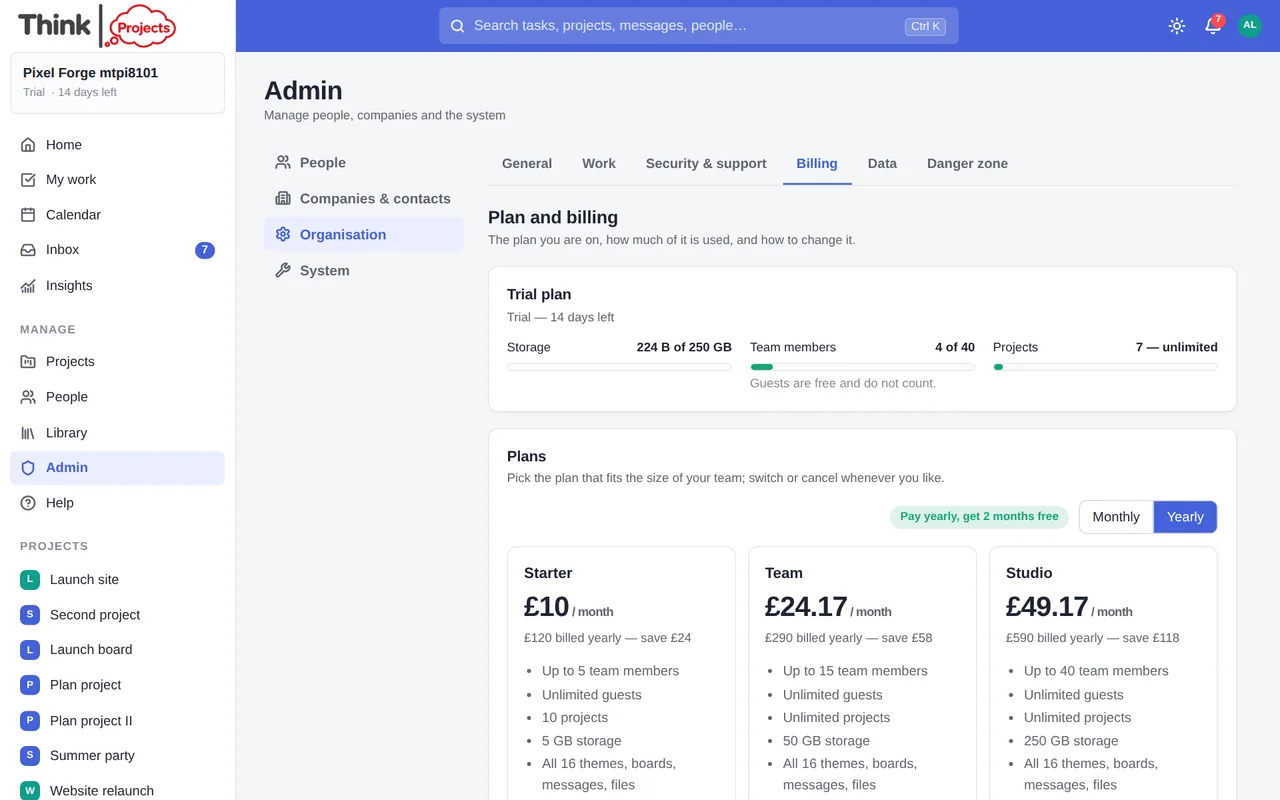
When a trial ends without a plan, the organisation becomes read-only: everything is still there to read and export, and choosing a plan brings it all back.
Data and Danger zone (owner only)
- Data — download everything the organisation holds as one zip: the database and every file. It is packed in the background with a progress bar, then downloads itself; a big workspace can take a few minutes, and the file is kept for a while so it can be downloaded again.
- Transfer ownership to another administrator.
- Delete organisation — removes everything, with no undo. Download the export first.
System
The plan and usage panel again, version information, content counts (people, projects, messages, tasks, files, storage) and the status of email, card payments and GIF search. Where the space goes lists storage by project; a project in the deleted bin can be removed for good from here with Delete now rather than waiting out its thirty days.
Want to try it on your own work? Every feature on every plan, a 14-day trial, no card needed — and guests are always free.
Create a workspace