
Workload
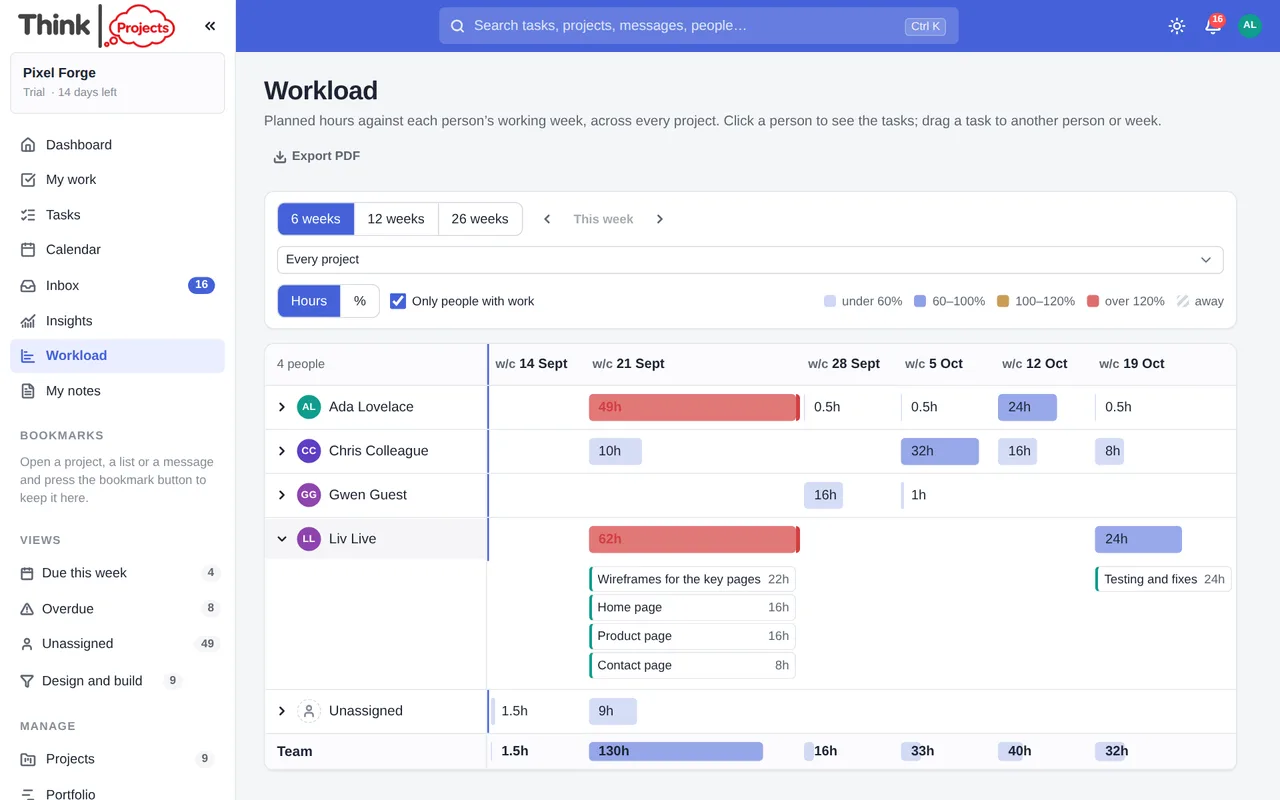
People down, weeks across: hours of planned work against the hours each person has.
Workload in the sidebar (or g then w) is the planning screen for a team: everyone in the organisation, six, twelve or twenty-six weeks ahead, and in each cell how much work is planned for that person that week against how much time they have. Nothing to fill in — it is worked out from what is already there: estimates, planned dates, the working week, time off and, if connected, calendars.
Reading the grid
Each cell is a bar, tinted by load:
- pale — under 60% of the week: room for more;
- blue — 60–100%: a full week;
- amber — 100–120%: tight;
- red — over 120%: more than fits.
A hatched cell means the person is away all week; 2d off in the corner means part of it. Hover a cell for the figures — 32h planned of 40h available, and 3h in meetings when a calendar is connected. Switch between hours and % at the top. Only people with work hides anyone with an empty row; untick it to see who is free.
The Unassigned row is estimated work that nobody owns yet — the next planning conversation. Team at the foot is everyone together.
Where the numbers come from
- Load is what is left of each open task's estimate — the estimate less any time already logged on it — spread evenly over the working days of the task's planned span (the same dates the timeline shows). A task whose dates have already gone by counts as due now, in the current week. An estimate with no dates and nothing to follow is planned from today.
- Capacity is the person's working week (the organisation's, or their own hours if an administrator has set them under Admin → People → ⋯ → Working hours…), less bank holidays, company closures, their time off, and any meetings from a connected calendar.
- Subtasks carry the work; a parent task's own estimate counts only when none of its subtasks has one.
Moving work
Click a person to open their row: each week lists the tasks behind the number as chips, coloured by project. Click a chip to open the task. Drag a chip to another person's row to reassign it, or to another week to move its start (a due date moves with it, so the task keeps its length); the target cell previews its new total before you drop, and the message that appears has Undo. You need the usual right to edit the task.
The top bar also filters to one project, steps earlier and later, and Export PDF prints the grid as shown. A project's own Timeline draws on the same figures for its Overloaded health item, so the two always agree.
Want to try it on your own work? Every feature on every plan, a 14-day trial, no card needed — and guests are always free.
Create a workspace