
Tasks
Lists, subtasks, quick entry, the task drawer, tags, priorities, repeats and templates.
The List tab
A project's tasks live in lists — To do, In progress, Client review, whatever suits the work. Every list can hold tasks, and every task can have subtasks up to five levels deep. To rename a list, click its name at the top of the list, type the new name and press Enter (Esc puts the old one back) — editors and managers can do this. The buttons beside the name add tasks from a template, archive the list or delete it.
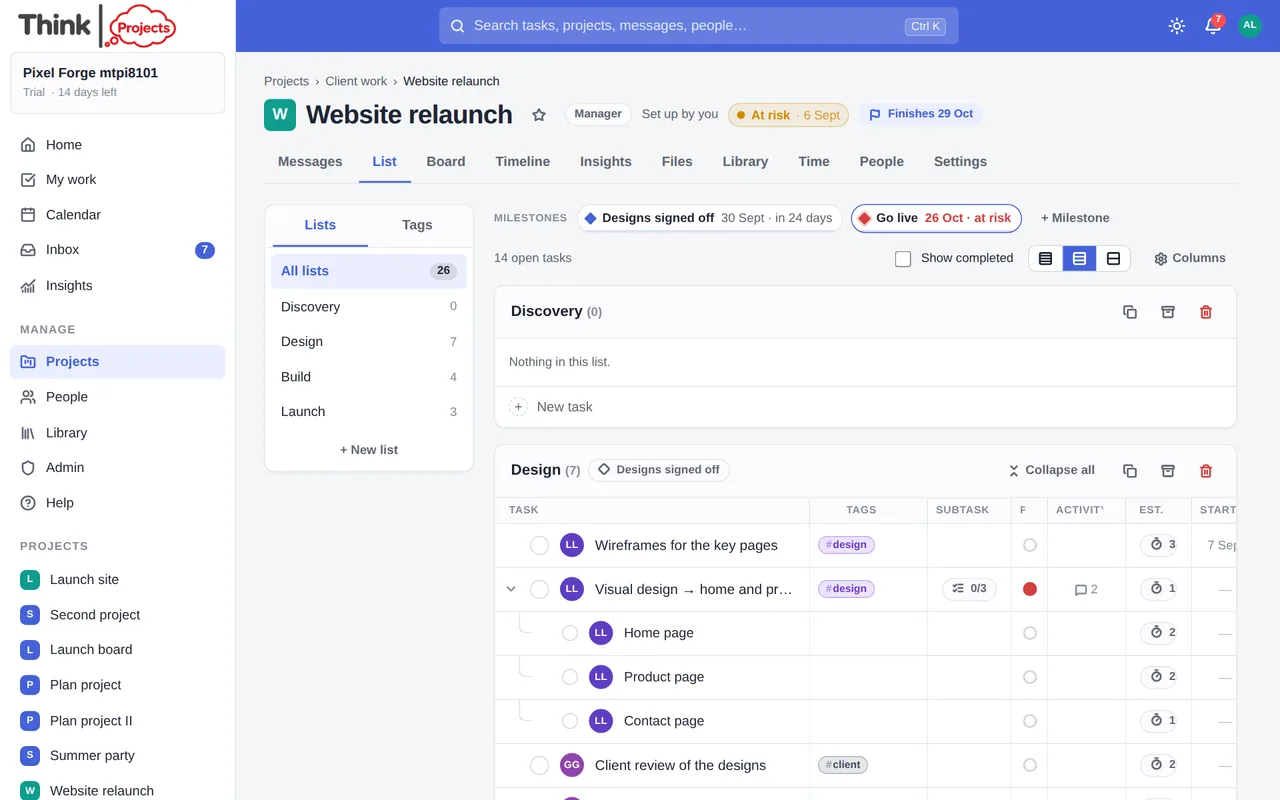
On the left, the side panel shows the lists with their open counts, and a Tags tab. Above the lists: the open-task count, a Show completed box, row spacing, and a Columns menu where you choose which columns to see — assignee, tags, priority, subtasks, comments and files, estimate, start and due. Your choice is remembered.
An archived list disappears from the page and the side panel shows Archived (n) instead; open that and the archived lists come back as cards under the live ones, each with a Restore button in its heading.
On a phone the side panel becomes a strip of lists across the top, and each row shows the task with its details in one line underneath — what is set, and nothing else; the drawer sets the rest. The select boxes are out of the way until you tap the tick-list button in a list's heading.
Adding tasks quickly
Click + New task at the foot of a list and type. Press Enter to add it and keep typing the next one. You can put the details straight into the title:
| Type this | And you get |
|---|---|
@ada |
assigned to Ada (a first name, full name or handle) |
fri, tomorrow, 12 sep, in 3 days |
a due date |
mon → fri, from 3 sep to 10 sep |
a start and a due date |
deadline 12 sep, latest fri |
a hard deadline (see below) |
2h, 1.5d, 3w |
an estimate |
!high !medium !low |
a priority |
#design |
a tag (made on the spot if it is new) |
weekly, every 2 weeks, every friday |
a repeating task |
A preview under the box shows what has been understood before you press Enter.
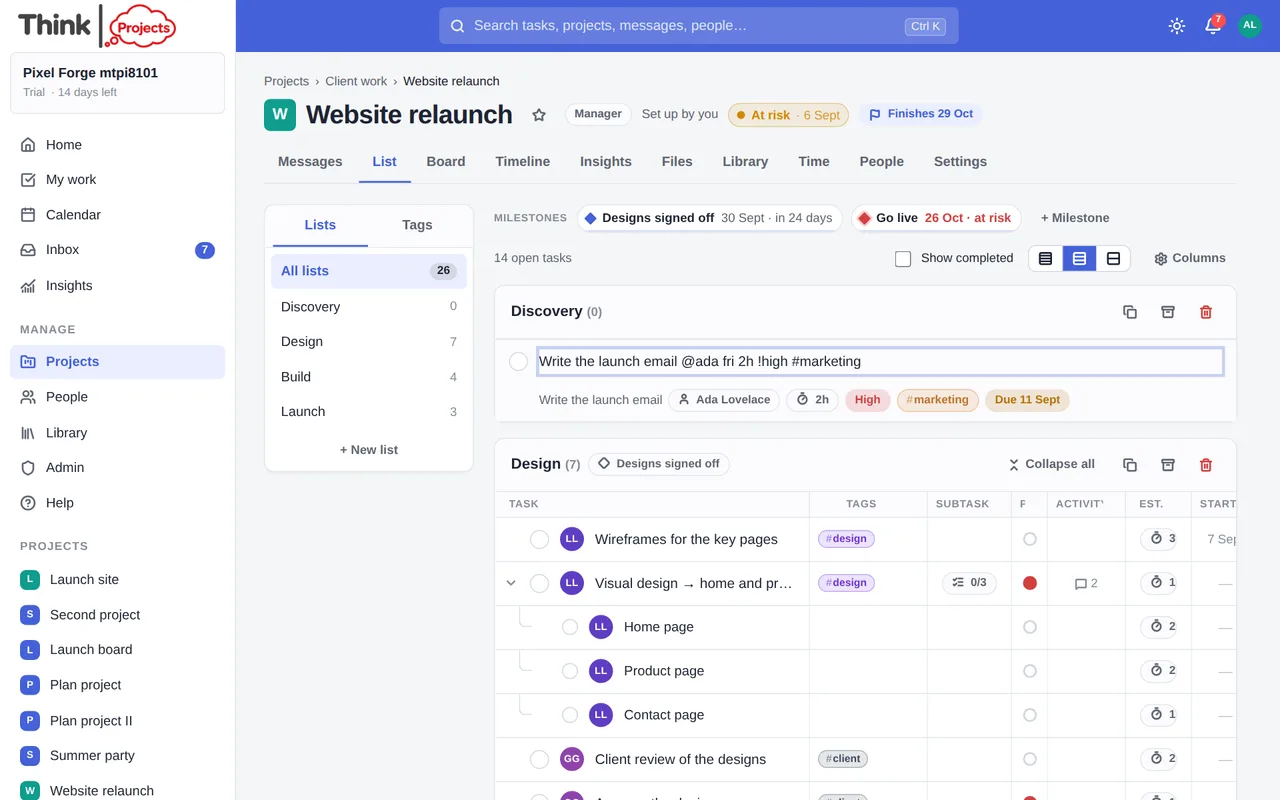
- Tab makes the next task a subtask of the one above; Shift Tab moves it back out.
- Esc stops.
Paste a whole list
Have a list already — meeting notes, a client's email, a column from a spreadsheet? Paste it into the box. When what you paste has more than one line, a bigger box opens with one task per line and a preview beside it. Indented lines become subtasks of the line above them (as deep as five levels), bullets and numbering are stripped, a Markdown tick box [x] makes a finished task, and the quick-entry syntax above is read on every line. Tab and Shift Tab indent or outdent the line you are on, Shift Enter starts a new line, and Enter adds them all at once — or nothing, if any line is refused. A line without an @name goes to whoever has its parent task, or the task above it, the same as when you type them one by one.
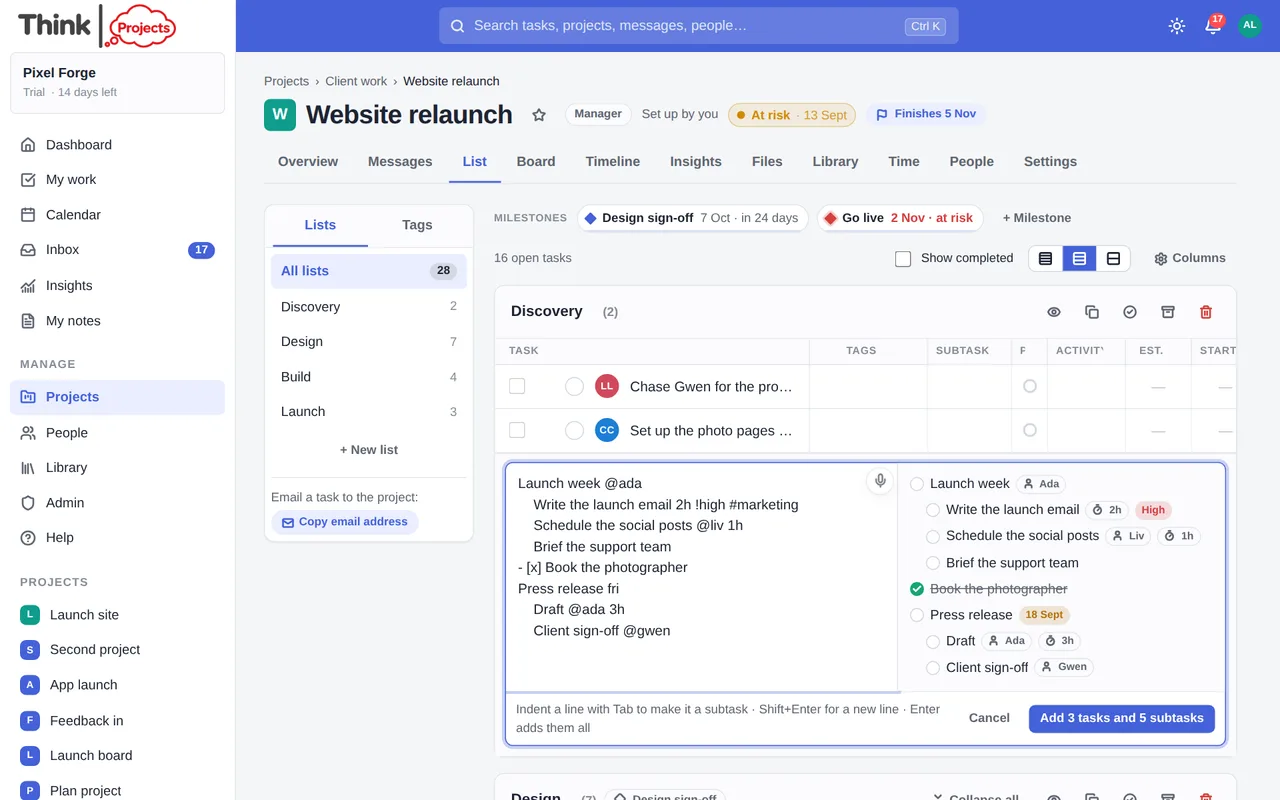
The same works in a task's Add a subtask box, where everything pasted becomes subtasks of that task. To start the bigger box without pasting, press Shift Enter in the ordinary one.
- A new task takes the assignee of the task above unless you give it one.
Email a task
Every project has an email address for tasks — Copy email address at the foot of the Lists panel puts it on your clipboard — forward an email to it (or write one) and it becomes a task. The subject is the title, with Fwd: and Re: dropped and the quick-entry syntax understood, so a subject of Fix the header on mobile @chris fri 2h !high #design assigns, dates, estimates, prioritises and tags it. The email itself, formatting and all, becomes the task's description, and any attachments become the task's files. It goes in the project's first list, or in the list a #word names (#client-requests for a list called Client requests). Only people on the project can send to it, from the email address they signed up with; the sender becomes the task's creator. The address is the project's Library address with -task on the end, so a manager giving the Library a new address renews this one too.
Working in the list
- Tick the circle to complete a task. Ticking a parent ticks off everything under it.
- Click the avatar to assign someone.
- Click a cell — estimate, start, due, a custom field — to change it right there. Tab saves and moves to the next cell; Enter saves and opens the same cell in the task below, so a column of estimates can be typed straight down. Every change leaves an Undo on the message that appears.
- Click a column heading to sort by it; click again to reverse, and once more to go back to your own order.
- Drag the line between two headings to change a column's width.
- Drag a row to move it: drop above or below another task, or onto the middle of one to make it a subtask. Drop on a list heading to move it to that list.
- Drag a tag from the side panel onto a task to apply it.
- Hover a row for two small buttons: a chevron that unfolds the task's details in place (or press . with the row focused), and + sub to add a subtask.
- Hover a row and press Tab to make it a subtask of the task above; Shift Tab brings it back out. No need to click first.
- The Export menu above the list prints it to PDF, or downloads it as a CSV.
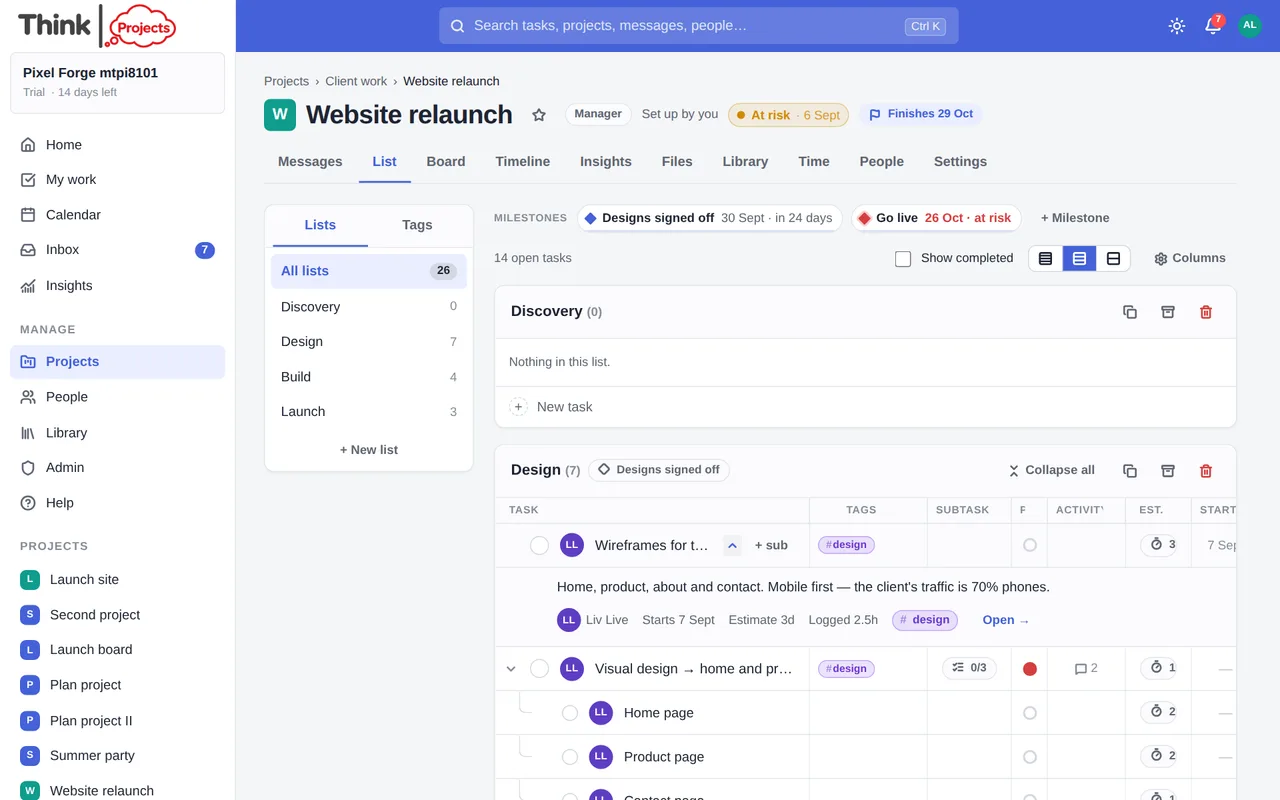
With a row focused you can also use the keyboard: ↑ ↓ to move, ← → to fold and unfold subtasks, Enter to open, Space to tick it off, Tab and Shift Tab to indent and outdent.
Following, finishing and sharing
- Follow a task with the eye button at the top of its drawer, and you are told about every comment on it, when it is ticked off, when it changes hands and when its dates move — in the app, as a pop-up (Tasks and lists I follow in your notification settings) and by email. Commenting on a task follows it automatically. The drawer's foot names everyone following.
- Follow a list with the eye button on its heading: you hear about tasks added to it, finished in it, or changed in it.
- Complete a whole list with the tick-in-a-circle on its heading: every open task in it is ticked off (a repeating task does not come back — the list is finished) and the list is tucked away with the archived lists. Nothing is deleted, and Restore brings it back with the tasks still done. Archive is still there for a list you want out of the way with its tasks as they are.
- Copy a link to a task with the link button at the top of the drawer, and paste it into a message, an email or a note — the link opens the task straight away. Threads have the same button.
Changing several at once
Tick the box at the start of a row (on a phone, first tap the tick-list button in the list's heading to bring the boxes out) and a bar appears above the list. From it you can assign them all to one person, move them to another list, set a priority, mark them complete, or delete them. Clear puts the bar away.
A bulk change follows the same rules as changing one task by hand: moving tasks to another list takes their subtasks with them, ticking a parent ticks what is under it, a repeating task still comes back as its next occurrence, and anyone newly assigned is still told. If one of the tasks you ticked is one you may not change, it is left alone and the message says how many could not be done — nothing changes silently.
Deleting several can be undone from the message that appears.
The task drawer
Click a task's title to open it in the drawer on the right. Everything about the task is here.
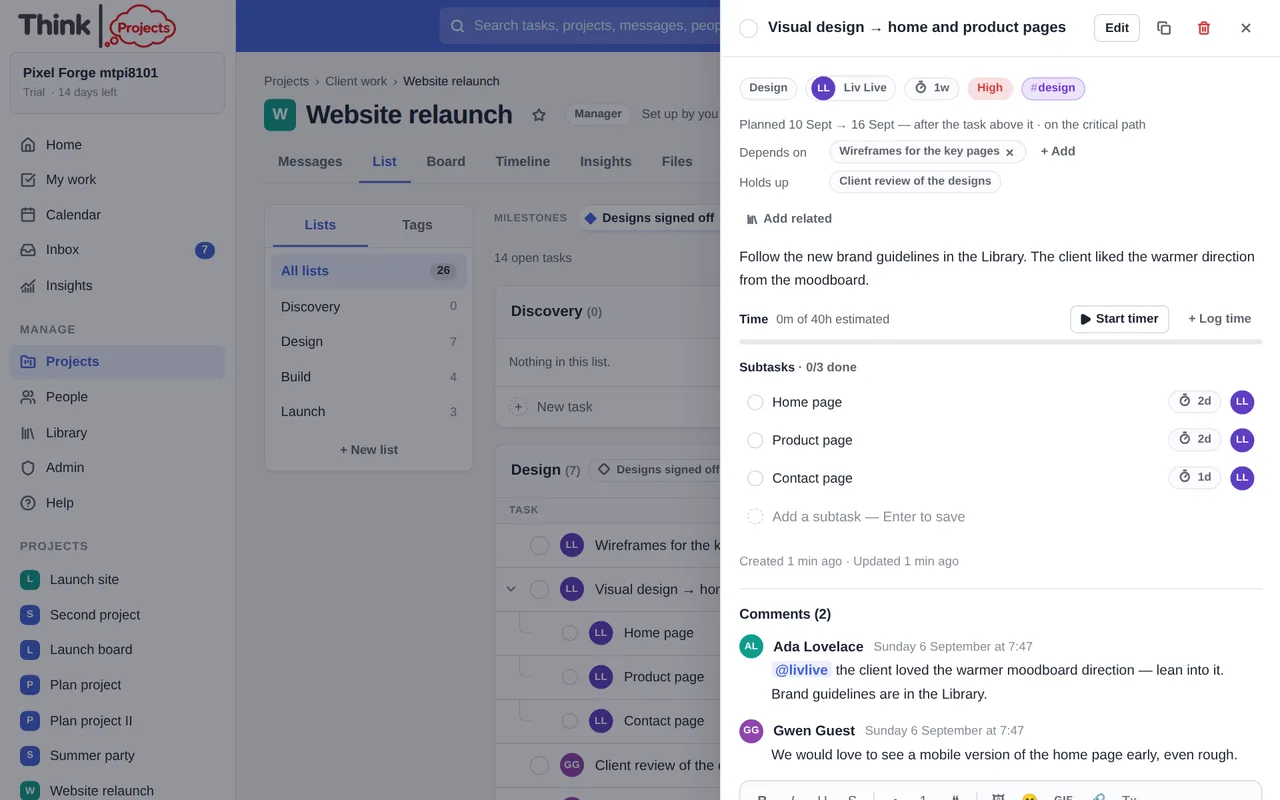
- Edit to change the description, assignee, estimate, dates, priority, list, parent task, tags, custom fields, repeat rule and progress. The description is written with the same editor as a comment — bold, lists, links, pictures. A date you set by mistake has a × inside its box to clear it. The priority list runs High, Medium, Low, None.
- Depends on — what has to finish before this can start. See Timeline and planning.
- Related — library items attached for context.
- Time — start a timer or log time (when time tracking is on).
- Subtasks — tick them off, or add one with the box at the foot.
- Comments — a conversation on the task, with @mentions and attachments.
- Save as a template keeps this task and its subtasks to reuse.
- Snooze takes the task out of your My work and the Dashboard until a time you choose — it is personal, and nobody else sees a change. When the time comes it is back, with a nudge in your Inbox (and as a pop-up and email, if you take those). A snoozed task shows a chip with the time; the × on it wakes the task early, and My work lists your snoozed tasks at the foot with Wake now.
- Remind me sets a nudge about the task at a time — in the app, as a pop-up and by email. A task can carry several; the × on a chip removes one. For a reminder on the morning any task of yours is due, see Notifications.
- Delete asks are you sure? first — tick Don't ask me again if you would rather it didn't (My settings → Appearance → Confirmations turns the question back on). Either way the message that appears has an Undo button, and the task can be brought back for ten minutes.
- Undo is also on the message after any edit — in the drawer or straight in the list — and puts the task back as it was.
Approvals
Some tasks are not finished until someone says so — the client signs off the designs, the manager okays the quote. Ask for approval in the drawer marks the task as needing approval by a person on the project. Pick who, add a note if it helps, and they are told in the app, as a pop-up and by email.
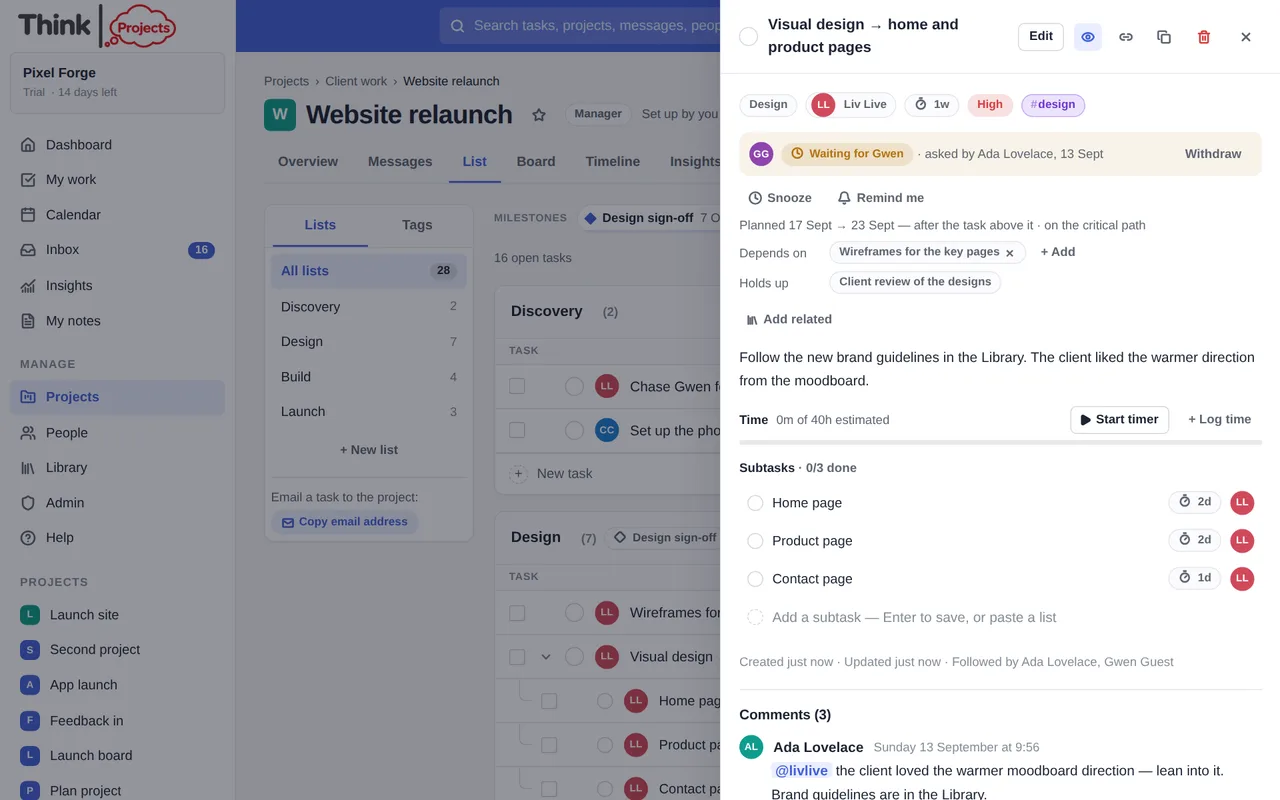
The email has two buttons, Approve and Ask for changes, that work without signing in (each opens a page that confirms before anything changes). In the app the same two buttons sit on the task and at the top of the approver's My work, under Waiting for your approval. Approving takes one click; asking for changes needs a line about what to change.
The answer lands on the task as a comment with a chip — Approved or Changes needed — and whoever asked is told. The task wears the state as a chip in the list and on the board: Waiting for Gwen, Approved by Gwen, Changes needed · Gwen. After changes, Ask again sends a fresh request; Withdraw takes back one that has not been answered. Only the person asked can answer; a guest can be asked, which is what makes it useful for client sign-off.
Stale tasks
An open task nobody has touched for two weeks quietly shows its age — a small 2 weeks chip after the title in the list and on the board — and after four weeks it fades a little, so old work is easy to spot without running a report. A list whose every open task has sat still says quiet for 3 weeks in its heading. Tasks with a start date still to come are left alone: they are scheduled, not forgotten. Any change to the task — an edit, a comment, ticking a subtask — resets the clock. If you would rather not see it, switch it off under My settings → Appearance → Stale tasks.
Priorities and tags
A task can be High, Medium or Low priority, or have none. Click the small dot in the priority column to change it. High-priority tasks are called out on the Dashboard and My work.
Tags belong to the organisation, so the same design tag works on every project. Make them in the side panel's Tags tab, pick a colour, and click one to filter the list to it (hold Shift to combine several) — the top of the list then says which tags it is showing, with Show all tasks to clear. Hover a tag on a task and press its × to take it off (with Undo); the pencil beside a tag in the panel renames or recolours it; the bin at the foot of the panel clears every tag from the organisation, after a confirmation. Administrators can also make, rename, recolour and merge tags under Admin → Organisation → Work.
Repeating tasks
Set Repeats in the drawer: every day, every working day, every week, every two weeks, monthly, every three months, yearly, or your own interval. When you tick a repeating task off, the next one appears with its dates moved on and its subtasks copied, unticked.
Estimates and dates
An estimate is how long the work takes: 2h, 1.5d, 3w. A day and a week follow your organisation's working week, so 1d is eight hours on a standard week. A start date and a due date pin the task in time. With just an estimate, the planner works out when the task will happen — see Timeline and planning.
The drawer tells you if the estimate does not fit: "3d from 8 Sep should finish on 10 Sep — after the due date."
Due date and deadline
A due date is when you plan to do something; a deadline is the latest it can be done — the day the client needs it, the day the offer expires. Most tasks only need a due date. When the two are different, set both: the deadline sits in the drawer next to the due date (or type deadline 12 sep in quick entry) and shows as a flag chip. Then overdue means past the deadline, so a task whose planned date has slipped is shown as planned 8 Sep rather than shouted about as late while the deadline still stands; The Dashboard, My work, the project's overdue count, Insights, status updates and the weekly summary all judge by the deadline when there is one. The deadline cannot be before the due date. On the Timeline a red flag marks each deadline, and if the plan lands a task after its flag, to look at lists it as lands after its deadline. The List can show a Deadline column — turn it on under Columns.
Task templates
Save a task and its subtasks as a template from the drawer. To use one, click the copy icon on a list heading — Add from a template — pick it, and give a start date if it carries dates. A standard checklist, an onboarding sequence or a release routine only has to be typed once.
Custom fields
A project can have up to eight extra fields of its own — a client reference, a cost, a review date, a status of your own. A manager sets them up under Settings; they appear in the drawer and, if ticked In list, as columns. Choice fields also become filters above the lists.
Want to try it on your own work? Every feature on every plan, a 14-day trial, no card needed — and guests are always free.
Create a workspace