Files and Library
Every file in a project, and the Library of links, notes, emails and reference files.
The Files tab
Files lists every file in the project under the day it arrived — newest first — with who added it, how big it is, and where it came from. The line under each name links back to the message, task or library item it belongs to. Click a name to open it, or use Download.
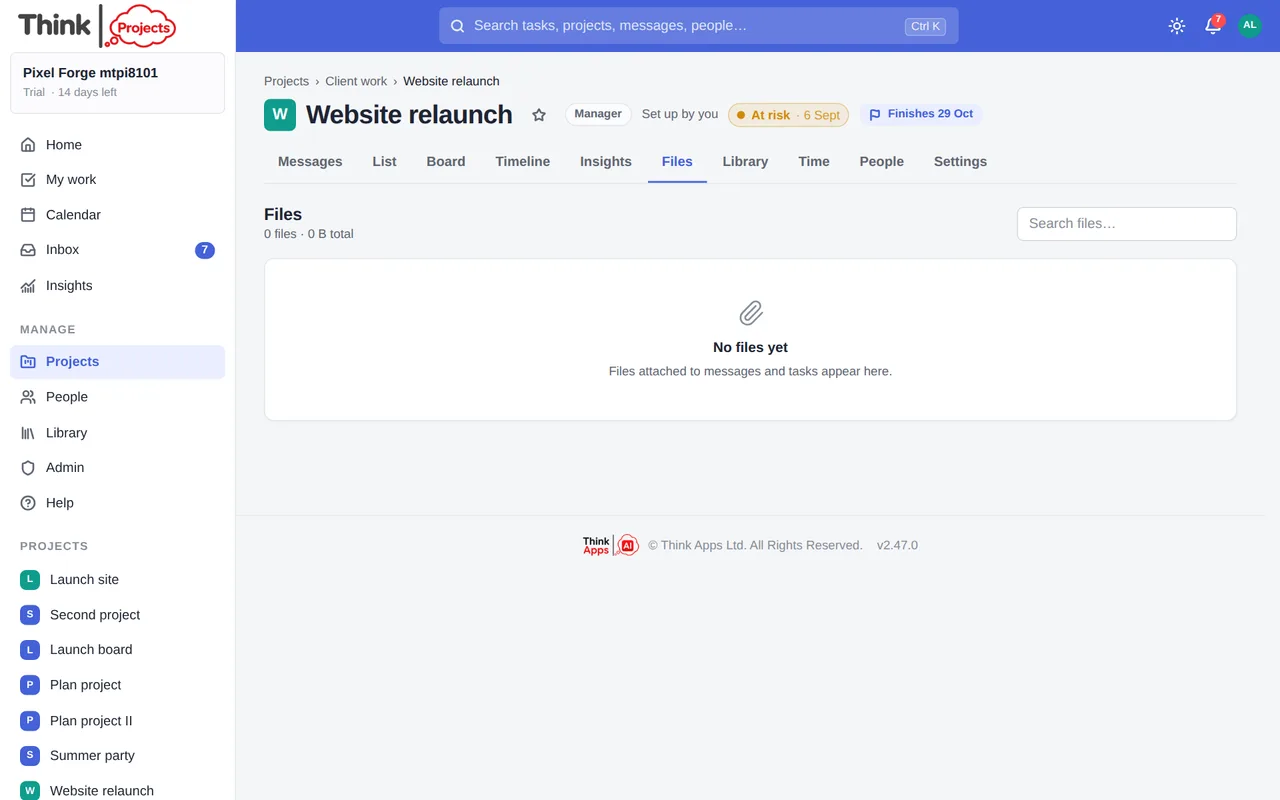
Add files puts a document straight on the project — the notes from a meeting, a contract, a spreadsheet — without anyone having to write a message around it. You can also drop files onto the list. They go into the project's Library, where a file that belongs to no conversation lives, and everyone on the project is told one file arrived, or several, by name.
Three views. Files is what you get first: everything except pictures pasted into the body of a message. Pasted into messages is those pictures and GIFs on their own. All is everything. Nothing is ever deleted by the filter — the count beside each name says how many are there.
- Search files… finds one by name, within the view you are in.
- Tick several files and Delete them together. You can delete a file you uploaded yourself; a manager of the project, and the organisation's owner and administrators, can delete any file in it — so freeing up space does not depend on who uploaded what. Administrators can see which projects hold the most under Admin → System → Where the space goes.
- Markdown and text files open in the app — click the name and the file is shown, formatted, rather than downloaded. Everything else opens in a new tab or downloads, as your browser prefers.
Uploads are up to ten files at a time and 25 MB each. Storage counts against your plan; an administrator sees the total under Admin → Organisation → Billing.
The Library
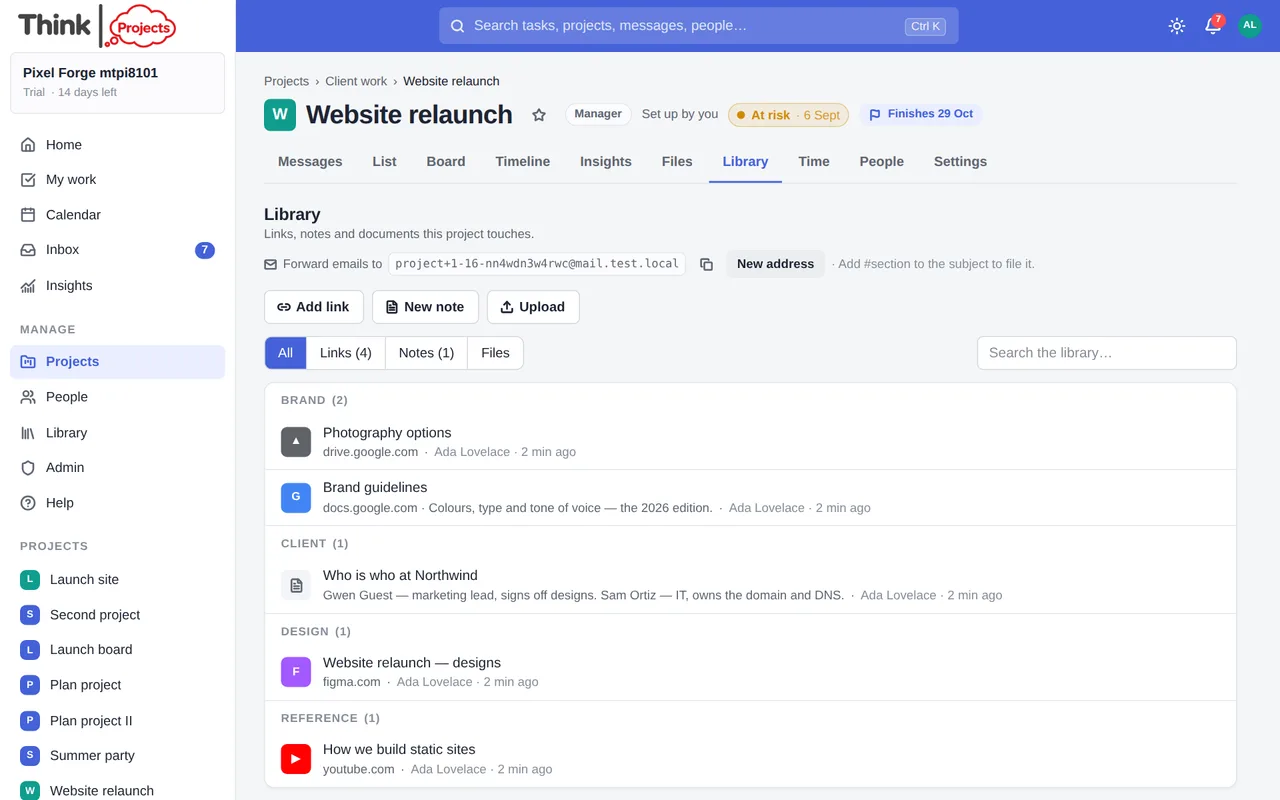
The Library is a project's shelf of reference material: links (Google Docs, Figma files, YouTube videos, web pages…), notes written in the app, files that are not attached to a conversation, and emails forwarded in. Items sit in named sections — Contracts, Brand, Research — with the pinned ones at the top.
Adding things
- Add link — paste a web address. The title is read from the page if you leave it blank, and so is its picture: a YouTube video's thumbnail, a Figma file's cover, the picture a web page offers when it is shared (the one a chat app would show). It appears on the card a moment after you add the link, with the kind's small symbol in the corner — hover a card to see it larger. A page with no picture keeps its tile. Pictures are kept by the app, so nobody's browser fetches anything from the other site, and they do not count against your plan's storage.
- New note — written with the full editor. Notes keep their last ten versions, and an older one can be put back.
- Upload — one or more files.
- Drag and drop — drop files, or a link dragged from another browser tab, a bookmark or a Drive file, straight onto the Library. Drop onto a section to file it there.
- Forward an email — see below.
- Share from your phone — see Phone.
Uploading files tells the project: everyone on it — guests included — gets one notification naming what arrived, however many files you dropped in at once. An email forwarded to the project's address tells everyone too. A link or a note is quieter: tick Tell the project in the dialog when you add or edit one and everyone hears — "New link: Brand guidelines", or "Updated: Brand guidelines" after an edit — and leave it unticked for the housekeeping nobody needs an email about. Anyone who would rather not hear can turn files added to a library off under Notifications. A project's chat hook can carry it into Slack, Teams or Discord too, under Project settings → Notifications.
Working with items
- Click a link to preview it without leaving the app: Google Docs, Sheets, Slides, Forms and Drive folders, YouTube videos and Figma files all open in a panel. Anything else opens in a new tab.
- Drag rows to reorder them, move them between sections, or pin them.
- Each row has buttons to open, download, pin, edit details (title, address, section, note, tags) and remove.
- Filter to Links, Notes, Files or Emails, or search the library.
Forwarding email into a project
A page is a note that has grown up — the project's Overview is one — and is listed with the notes; open a note and choose Make this a page to promote it (or the reverse). See Projects → The Overview.
Every project has its own email address — tap Copy email address at the top of its Library and paste it into an email. Forward an email to it and the email becomes a Library item, with the subject as its title and any attachments as its files. Put #contracts (or any section name) in the subject to file it in that section. Only people on the project can file things this way: an email from someone outside your workspace becomes an email conversation on the Messages tab instead, which the team answers from the thread — see Messages → Email conversations. A manager can give the project a new address at any time, and the old one stops working. The same address with -task on the end turns an email into a task instead — see Tasks.
The General library
The organisation has one more library, Library in the sidebar, for things that belong to no project — the staff handbook, brand assets, shared links. Members and administrators see it; guests do not.
Related items
Any task or message can carry Related items from the Library: the brief next to the task that needs it, the contract under the message that discusses it. Use Add related, pick from the library or paste a new link, and it shows as a chip. Removing a chip does not delete anything from the library.
Who can do what
Seeing a project's library follows seeing the project (guests included). Adding follows posting rights. Changing or removing someone else's item needs editor rights on the project.
Want to try it on your own work? Every feature on every plan, a 14-day trial, no card needed — and guests are always free.
Create a workspace