
Timeline and planning
The plan on a calendar: bars, links between tasks, milestones, the finish date, plan health and undo.
The Timeline tab
The Timeline draws every dated or estimated task as a bar on a calendar, grouped by list, with today marked. The scale slider at the top runs smoothly from a few pixels a day out to hours; the Day / Week / Month buttons jump to the usual three. Press Today to scroll back to now. Drag any empty part of the chart to pan it, the way the Board scrolls.
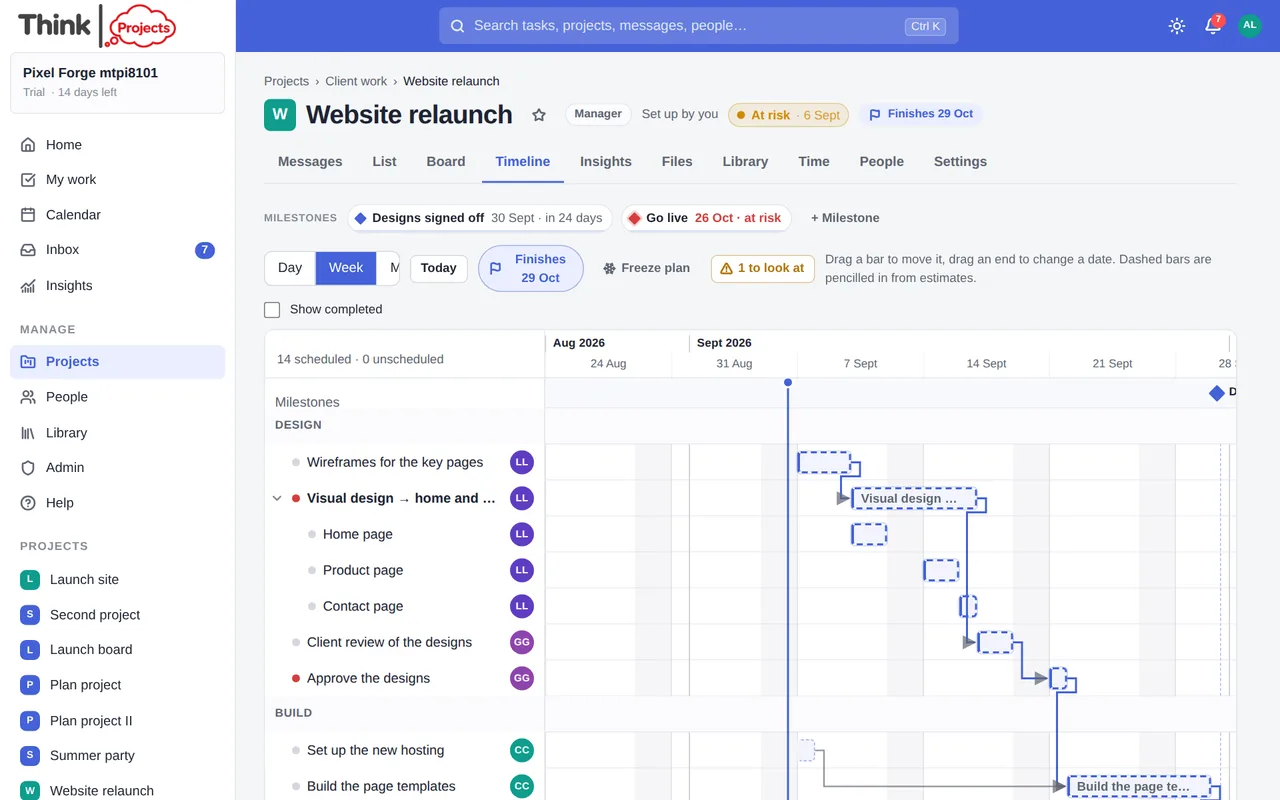
Three kinds of bar:
- A solid bar is a task with a start and a due date.
- A diamond is a task with only a due date.
- A dashed bar is pencilled in: the task has an estimate but no fixed dates, so the planner has worked out when it will happen.
Weekends, bank holidays and company closures are shaded, and so is a person's own time off on their rows. Bars with a heavier outline are the critical path — the chain of tasks that decides when the project finishes. Arrows join a task to what it depends on; a dotted arrow shows a task that follows the one above it in list order.
Moving things
- Drag the middle of a bar to move the task; drag either end to change that date. A pencilled-in bar becomes real dates when you drop it. Only that task moves — anything that depends on it follows, nothing else does.
- A task cannot be dropped before what it depends on finishes; the bar stops there and says why.
- Undo and redo any move with ⌘Z / ⌘⇧Z (Ctrl on Windows), or the arrows in the toolbar.
- Tasks with no dates at all sit in the Unscheduled card below the chart, each with a Start today button.
- Click a bar to open the task drawer. The ⋯ on a row moves the task up or down its list.
- Each list has an + Add task row at its foot: type a title and it is placed at the end of that list's plan.
Linking tasks by dragging
Hover a bar and a small ring appears at its right-hand end. Drag the ring onto another bar and the second task now depends on the first — it cannot start until the first has finished, and it moves when the first moves. Hover an arrow and press its × to remove the link. Links can also be made from the task drawer (below), where you can add a gap in working days.
Planning several at once
Tick the boxes on the left of the rows to pick tasks, then Plan in order in the toolbar: give them all an estimate (or only the ones without), chain them so each follows the last, and set the first one's start. One dialog, one Undo.
How the planner works
You do not have to date every task. Give tasks estimates and the planner lays them out for you:
- A task starts after whatever it depends on has finished — or, if the project follows list order (Options → Plan follows list order, off by default), the working day after the task above it in the same list. With that off, a task with nothing to wait for starts today, or where its list starts if that is later.
- It runs for its estimate in working time, skipping weekends, bank holidays, company closures, the assignee's own time off — and their meetings, when they have connected a calendar (see Your settings).
- A parent task spans its subtasks.
- A task that was finished early ends the day it was finished, so what waited on it can start sooner.
- The project finish is the day the last open task ends. It shows in the project header, on the Projects page, on the Dashboard and on the Portfolio as Finishes {date}, and any change that moves it tells you: "Finish moved 12 Nov → 17 Nov".
A task with its own start date is pinned and stays put; the planner works around it. Tasks in archived lists take no part in the plan.
Dependencies
Open a task and use Depends on → + Add to say that it cannot start until another task has finished. You can add a gap in working days — "two days after the print run comes back". The task then moves on the timeline when the thing it depends on moves, and arrows join them.
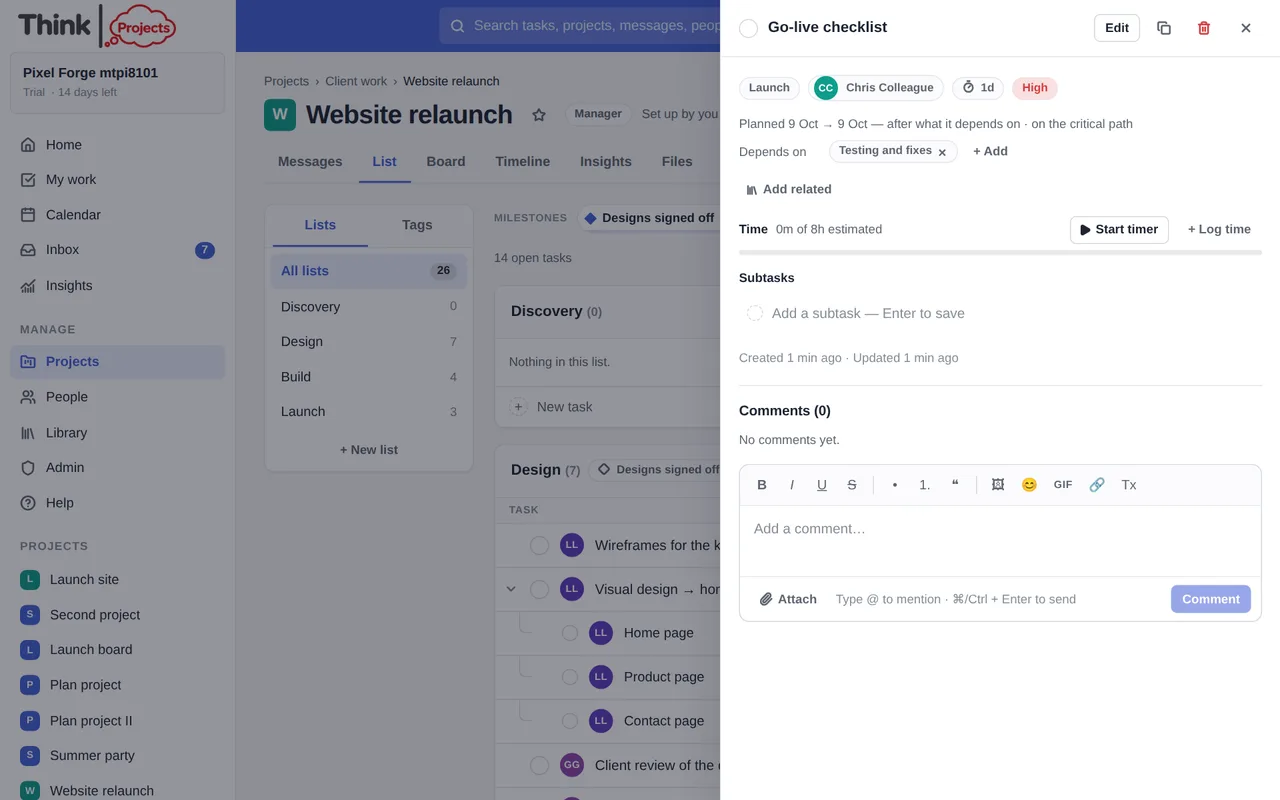
The drawer explains why the task sits where it does: after what it depends on, after the task above it, with its parent, or from the start of the list, and whether it is on the critical path. A task pinned to a date earlier than its dependency allows is flagged in red rather than moved silently.
Milestones
A milestone is a date the project is measured by — a launch, a sign-off, a delivery. Add one from the strip above the List or Timeline with + Milestone.
- Give it a name, a date, an owner and, optionally, the task lists that lead to it. Their tasks become the milestone's progress bar.
- Choose what happens when the plan slides past it: a fixed date turns red when its work is planned to land late (a promise to someone), while moves with the work slides to the day its tasks will actually finish (a target).
- Milestones appear as diamonds and vertical lines on the timeline, on the Calendar, on the Dashboard, on the Portfolio and in the weekly status update. The last open milestone (a fixed one, for preference) is the date the project's finish is measured against, on Insights and the Portfolio alike.
Plan health
The "N to look at" button above the chart opens the plan-health panel: everything the planner thinks you should know about.
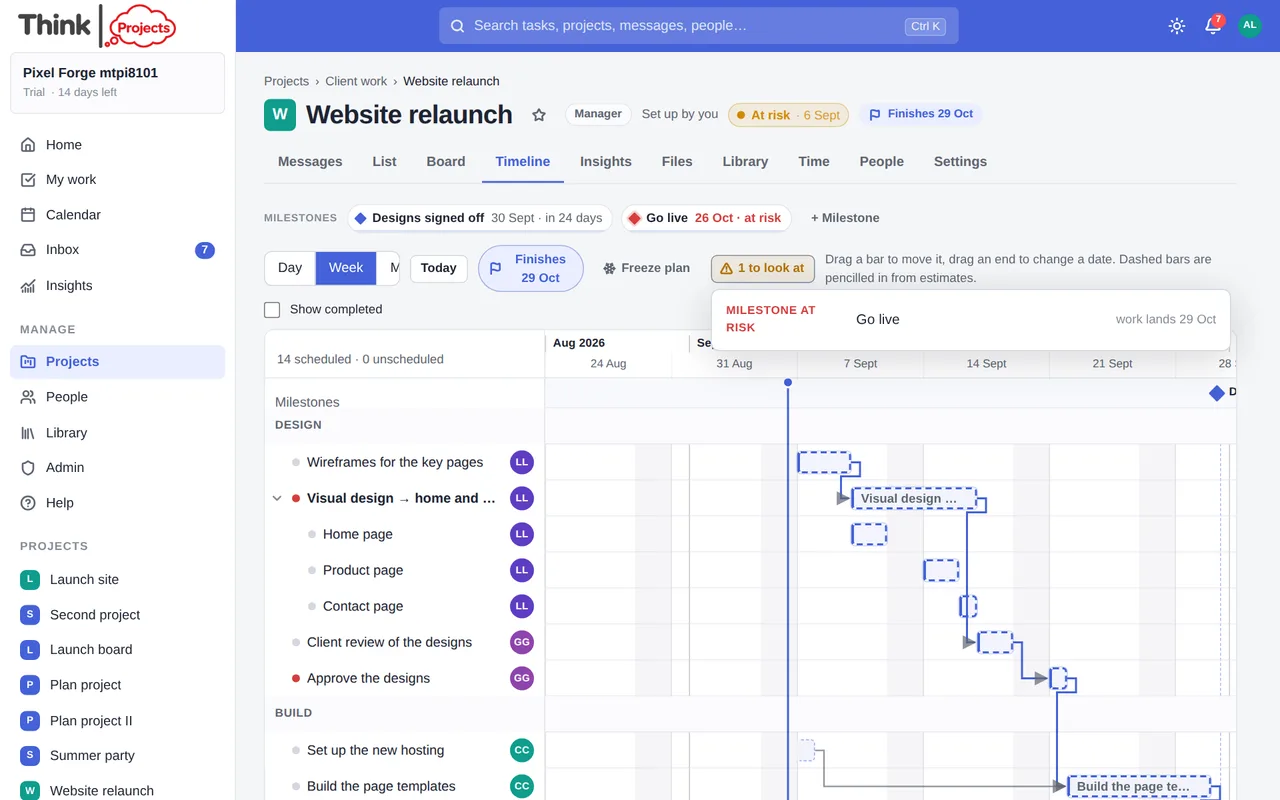
- Starts too early — a task is pinned before what it depends on can finish.
- Lands after its deadline — a task's hard deadline cannot be made.
- Time off — someone is away during their task.
- Milestone overdue or at risk — the work will land after the milestone's date.
- Overlap — one person has two tasks planned at the same time.
- Overloaded — a person has more work left to do in a week than hours to do it, using the same figures as Workload: the estimate less time logged, against their own hours less time off and meetings. Red past 120%.
- No estimate — open tasks with neither an estimate nor a due date, so the planner cannot place them.
Click any line to open the task.
Freezing the plan
Once a plan is agreed, click Freeze plan. The timeline keeps a copy, and from then on shows grey ghost bars behind each task where it was, with a drift figure next to the finish date — +4d — so slippage is visible at a glance. Re-freeze replaces the copy; the × forgets it.
Getting the timeline out
The Export menu makes a PDF, a PNG or an SVG of the whole plan, fitted to the page, or of just the part you are looking at. Every other view has an export too — the List and the Board as PDF, the List as CSV, the Calendar and Insights as PDF.
Working week and time off
All of this depends on the organisation's working week (hours for each day, bank holidays for your country, company closures), set by an administrator under Admin → Organisation → Work; on each person's time off, which they add under My settings → Calendar or an administrator adds for them under Admin → People; on a person's own working hours, for part-timers (Admin → People → ⋯ → Working hours…); and on meetings from a connected calendar. Two weeks off for one person moves their tasks and everything that waits on them.
Want to try it on your own work? Every feature on every plan, a 14-day trial, no card needed — and guests are always free.
Create a workspace