
Projects
Creating projects, the tabs inside one, settings, templates and archiving.
The projects list
Projects lists everything you can see, grouped by category. Switch between a list and cards with the buttons at the top right, type in the filter box to find one, and click the star to pin a project to the top of your sidebar.
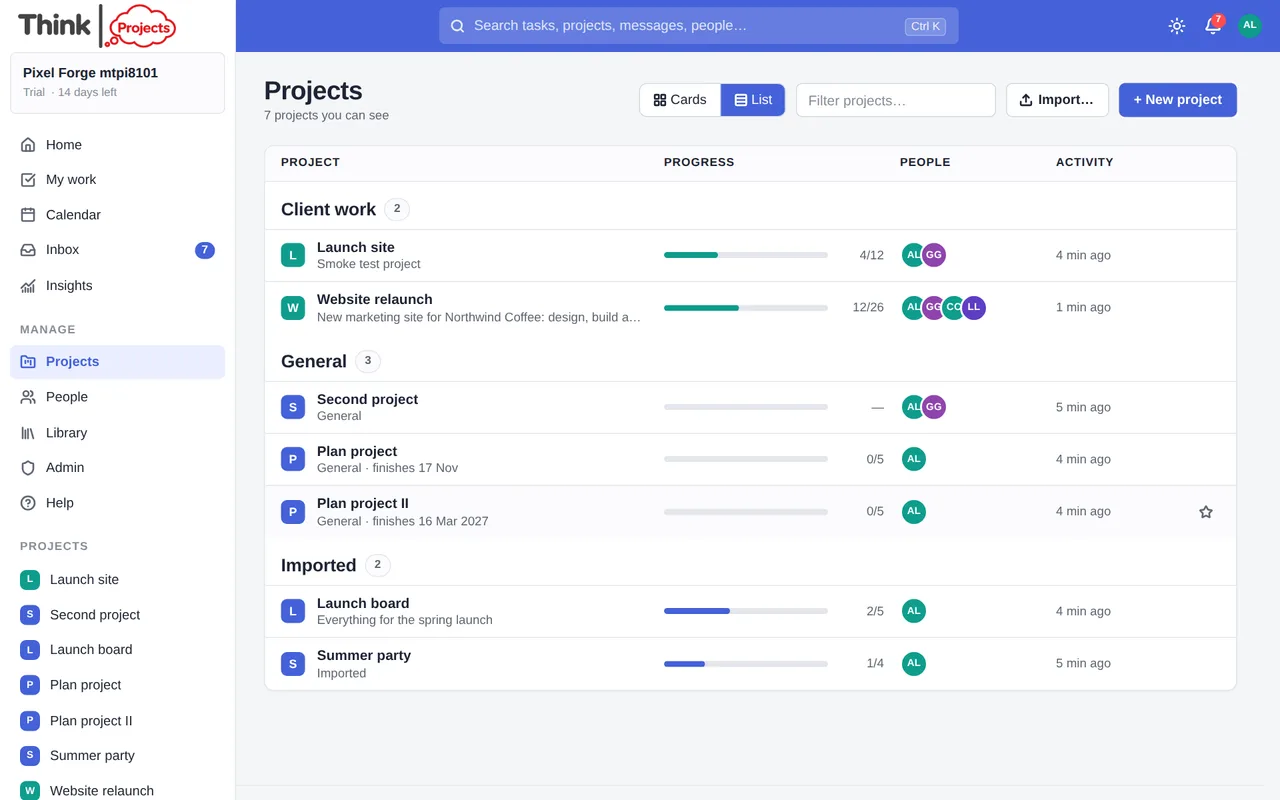
Members and administrators can drag projects to arrange them, or drop one onto another category's heading to move it there. The order is shared, so everyone sees the same arrangement.
At the foot of the list, Archived holds projects tucked away for later, and Deleted holds projects deleted in the last 30 days — each with who deleted it, when, and the date it goes for good, and a Restore button for managers.
Where a project opens
A project opens on the tab you were last on in it, so a project you work in as a list of tasks stays on the List and one you use for conversation stays on Messages. A link someone sends you always opens the tab it names. A project you have not opened before starts on its Overview if one has been written, on the List when it has tasks and no messages — a freshly imported project, usually — and on Messages otherwise.
A project you have just created or imported is highlighted for a few seconds in the projects list, so you can find it among the rest.
Creating a project
Click + New project. Give it a name, an optional description and category, pick a colour, and choose what to start from:
- Software — Backlog → To do → In progress → Review → Done
- Client work — Brief → In progress → With client → Delivered
- Marketing — Ideas → Drafting → Scheduled → Published
- Blank — no lists yet
- Any saved template of your own (see below)
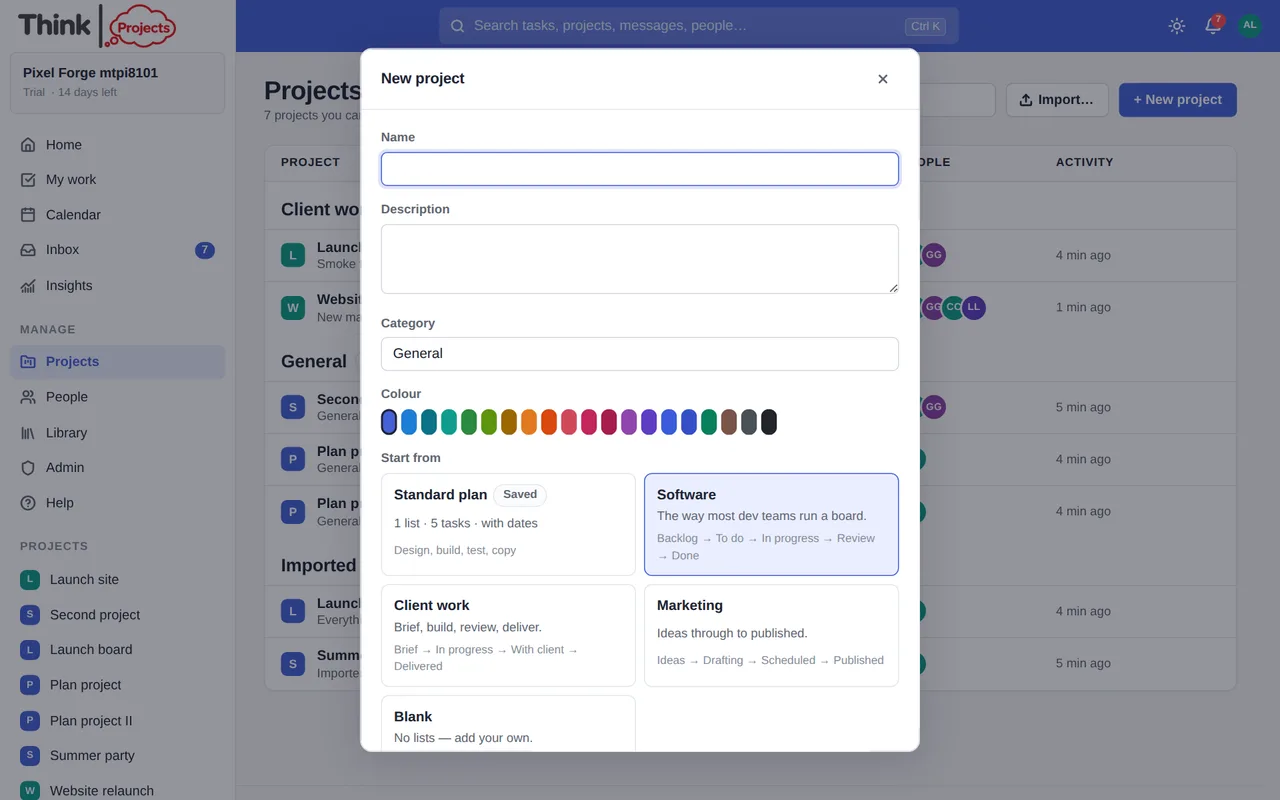
You become the project's manager. Members and administrators can create projects; guests cannot.
Starting with a sample project
An empty workspace says nothing about what a project looks like in use, so the Projects page offers six sample projects — click Sample… at the top, or Start with a sample on an empty Projects page. Each is realistic work caught mid-flight: a website relaunch for a client, an app release, a product launch campaign, onboarding a new client, hiring a senior developer, and an annual customer conference. Pick the one closest to what your team does and it arrives with its lists, tasks (estimates, dependencies, tags, some done and some not), milestones, hours logged, a few conversations with replies, an Overview and pages, and last week's check-in meeting written up.
The people in a sample are examples: they are marked example wherever they appear, never sign in, get no email and take no seat. Only the person who added the sample and those example people are on it — the rest of your team is not added. Sample projects sit under the category Sample projects; delete one like any project, or open the gallery and press Remove all samples to take every sample and the example people away in one go.
Inside a project
Every project has the same tabs across the top:
| Tab | What it is for |
|---|---|
| Overview | The project's front door — see below |
| Messages | Conversations — announcements, questions, decisions, weekly status updates |
| List | The tasks, in lists, with subtasks |
| Board | The same tasks as cards in columns |
| Timeline | The tasks on a calendar, with dependencies and the planned finish |
| Insights | Health, the burn-up and who is doing what — see Insights |
| Files | Every file attached anywhere in the project |
| Library | Links, notes, pages, emails and reference files |
| Time | Logged hours (when time tracking is on) |
| People | Who is on the project and their roles |
| Settings | Managers only — name, logo, custom fields, integrations, archive |
The header shows the project's name, your role, who set it up, the colour of the last status update and Finishes {date} — the day the plan says the last task will be done. Click it to open the timeline.
The Overview
The Overview is the page a new person reads on day one and everyone comes back to. Along the top sits a strip of facts the app works out — who manages the project, how many people are on it, the dates, the next milestone, open and overdue tasks, the health score from Insights, when it was set up — so that part is always right without anyone maintaining it. Below is the page itself: what the project is, who is who, where things live, the decisions, how you work.
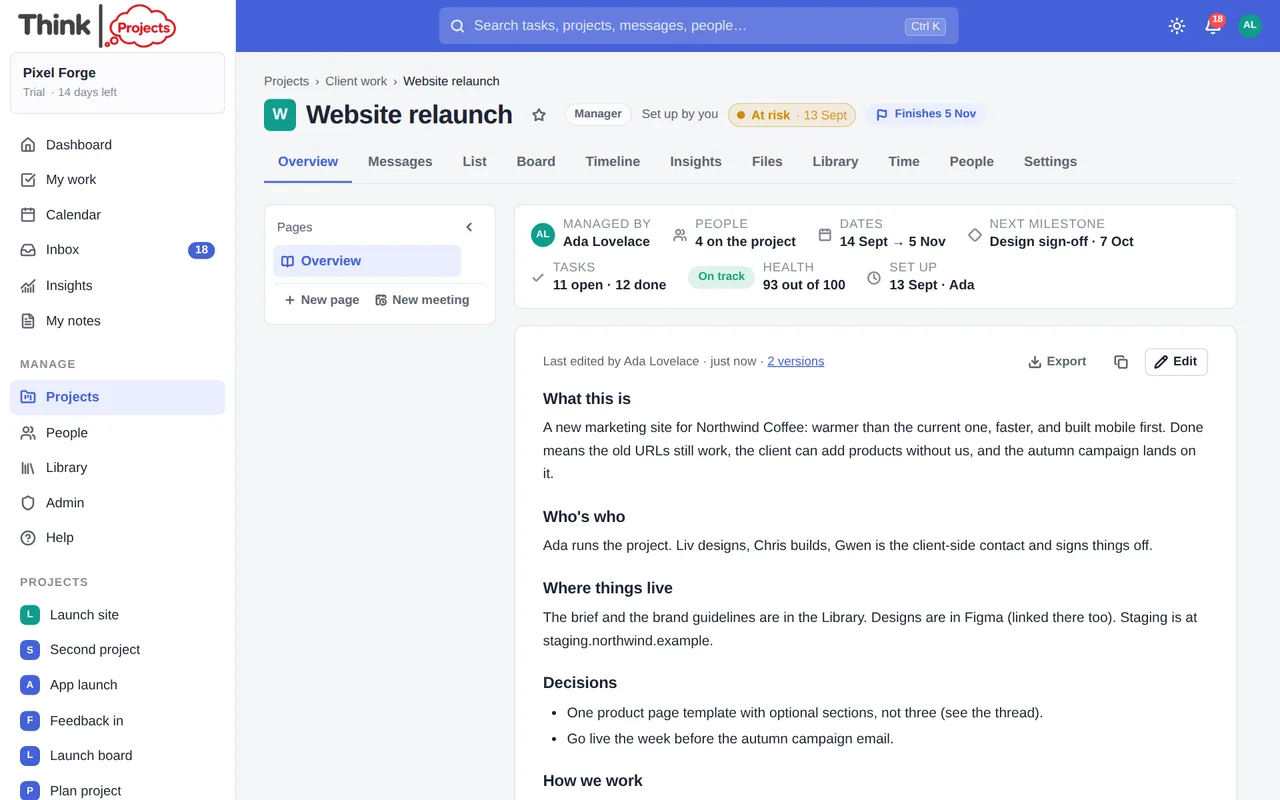
Until someone writes it, the tab shows the starter layout and, for editors and managers, Start the Overview — from the Overview starter or one of the others (Decision log, Meeting notes, Onboarding checklist, Client brief), or from a template your organisation saved. It is the same editor as a message, one person editing at a time, with every save kept in the version history (click N versions to see or restore one). Guests can read it but not change it. Once it has been written, opening the project lands on it.
The Overview lives in the project's Library as a page — a note that has grown up — so it can be found by search, linked as Related from tasks and threads, and any note can be made a page (and back) from its own window. Other pages sit under it in a tree — meeting notes, decisions, a brief — and link to the work with [[; see Pages. The copy button saves the Overview as a page template for other projects to start from; templates live under Admin → Organisation → Work.
Project settings
Managers can change the name, description, category and colour, and upload a logo that replaces the coloured square wherever the project appears.
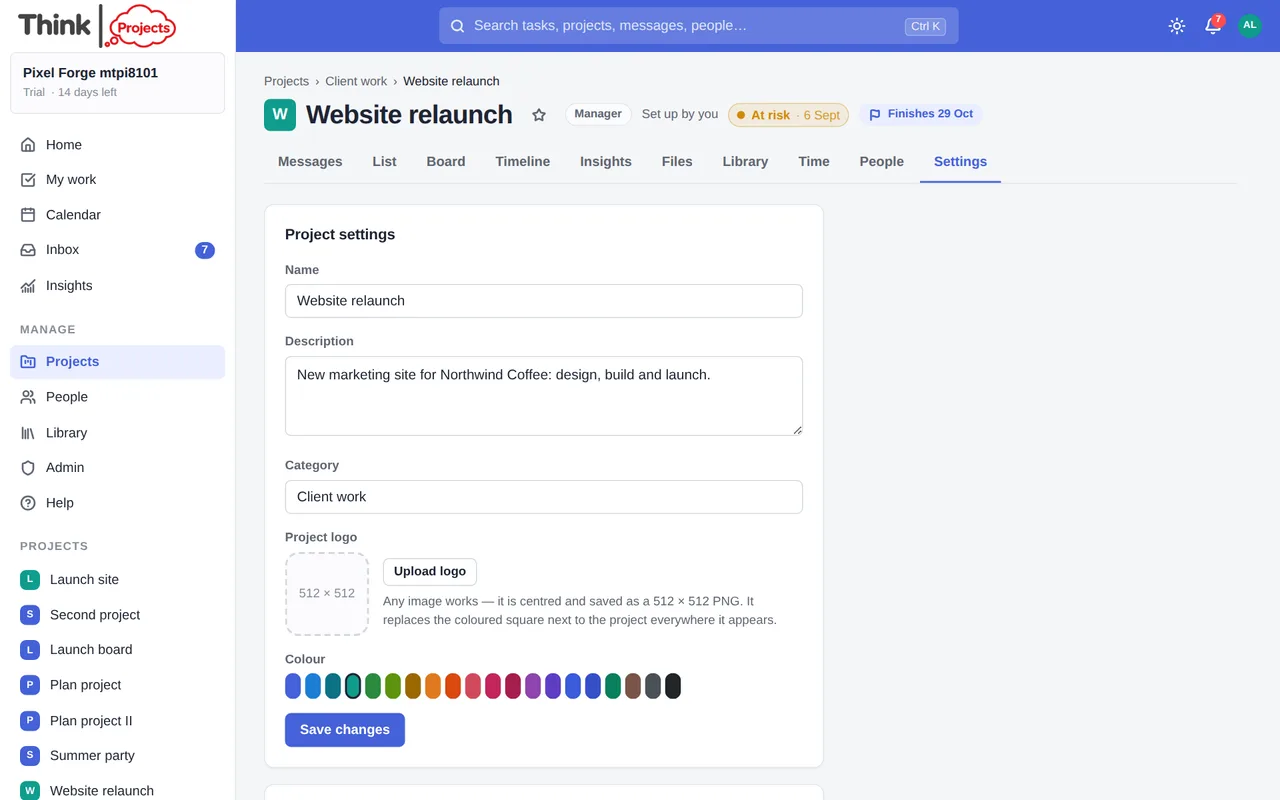
Further down:
- Custom fields — up to eight extra columns for this project's tasks: text, number, date, a choice list, a tick box or a link. Tick In list to show one as a column on the List tab.
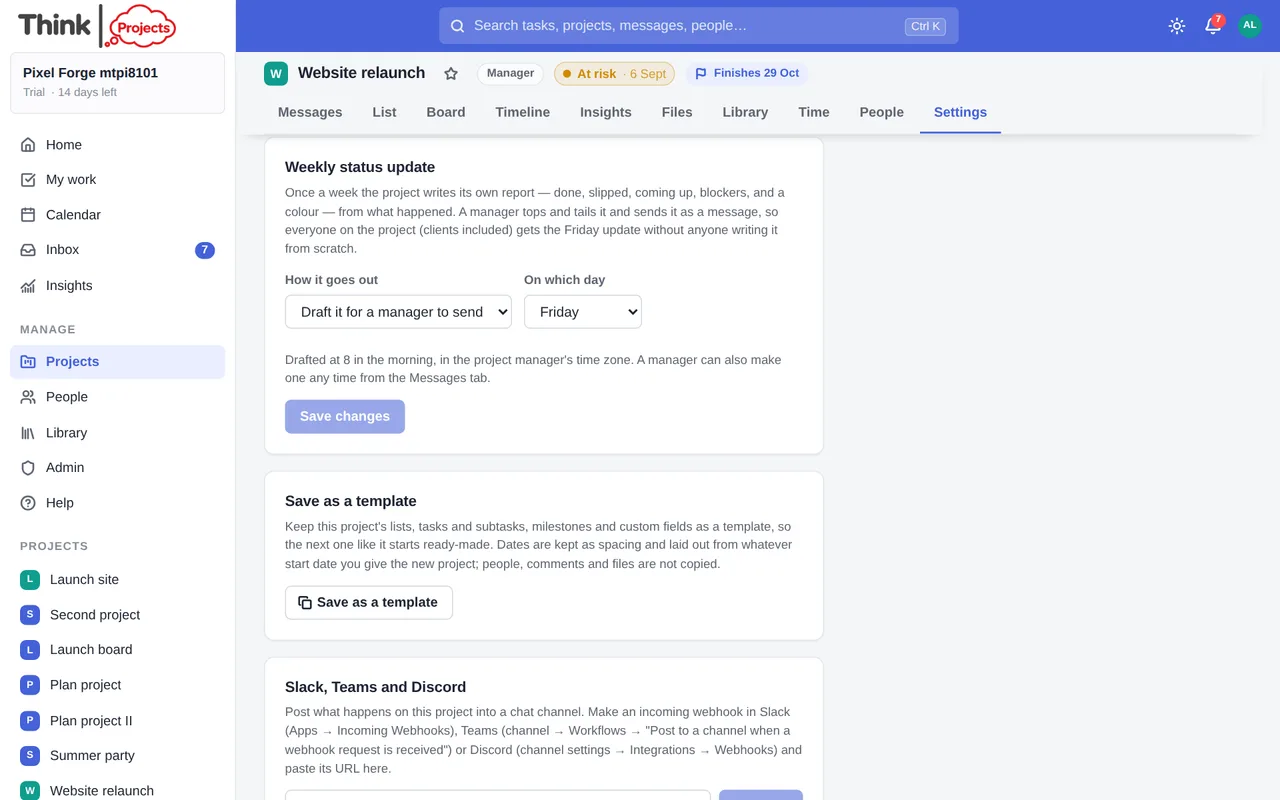
- Weekly status update — whether a draft is prepared for a manager, sent automatically, or off, and on which day. See Status updates.
- Client links — a read-only page of the project for someone with no account, which you can turn off at any time. See Client links.
- Save as a template — keep this project's lists, tasks, milestones and custom fields to start future projects from.
- Slack, Teams and Discord — paste an incoming-webhook address and choose which events to post: new messages, replies, tasks added, tasks completed, milestones reached. Up to five per project.
- Archive — tucks the project away without deleting anything. It leaves the projects list and the sidebar, its tasks leave everyone's My work, and it becomes read-only. Restore it from here or from the Archived section at the foot of the projects list.
- Delete — takes the project out of everyone's lists straight away, but nothing is removed yet. It sits in the Deleted section at the foot of the projects list for 30 days, and any of its managers can Restore it from there exactly as it was — same tasks, messages, files and links. After the 30 days it is removed for good — or sooner, if an administrator presses Delete now in the Deleted section, which frees its storage at once. The delete box has a tick box, Tell everyone on the project: leave it ticked and the people on the project get a notice saying who deleted it and where it can be brought back; untick it to delete quietly. If you open a link to a deleted project you are told what happened and pointed at the Deleted section.
Templates
A project template is a saved copy of a project's structure: its lists, tasks and subtasks, milestones, custom fields and dependencies. Dates are kept as spacing, so when you start a new project from it you give a start date and everything is laid out from there. People, comments and files are not copied.
- Save one from Settings → Save as a template.
- Use one from Start from when creating a project.
- Rename or remove templates under Admin → Organisation → Work.
There are also task templates — a task with its subtasks — described in Tasks.
Want to try it on your own work? Every feature on every plan, a 14-day trial, no card needed — and guests are always free.
Create a workspace