Pages
The words around the work: the Overview and the pages under it, links that show as live chips, "Mentioned on", and live blocks that never go stale.
A project's story is easy to scatter — the brief in one place, the decisions in threads, the people and links in heads. Pages keep it together. Every project starts with the Overview (its front door, see Projects); under it you can add pages for the things worth writing down — meeting notes, decisions, a client brief, an onboarding checklist — and link them to the tasks and threads they are about.
The tree of pages
Open a project's Overview tab and the pages sit down the left, the Overview at the top. Click a page to read it. Pages nest three levels deep at most — the Overview, sections under it (Meeting notes), and pages under those (Kick-off, 8 Sept) — enough to keep meeting notes by month, not enough to lose things in.
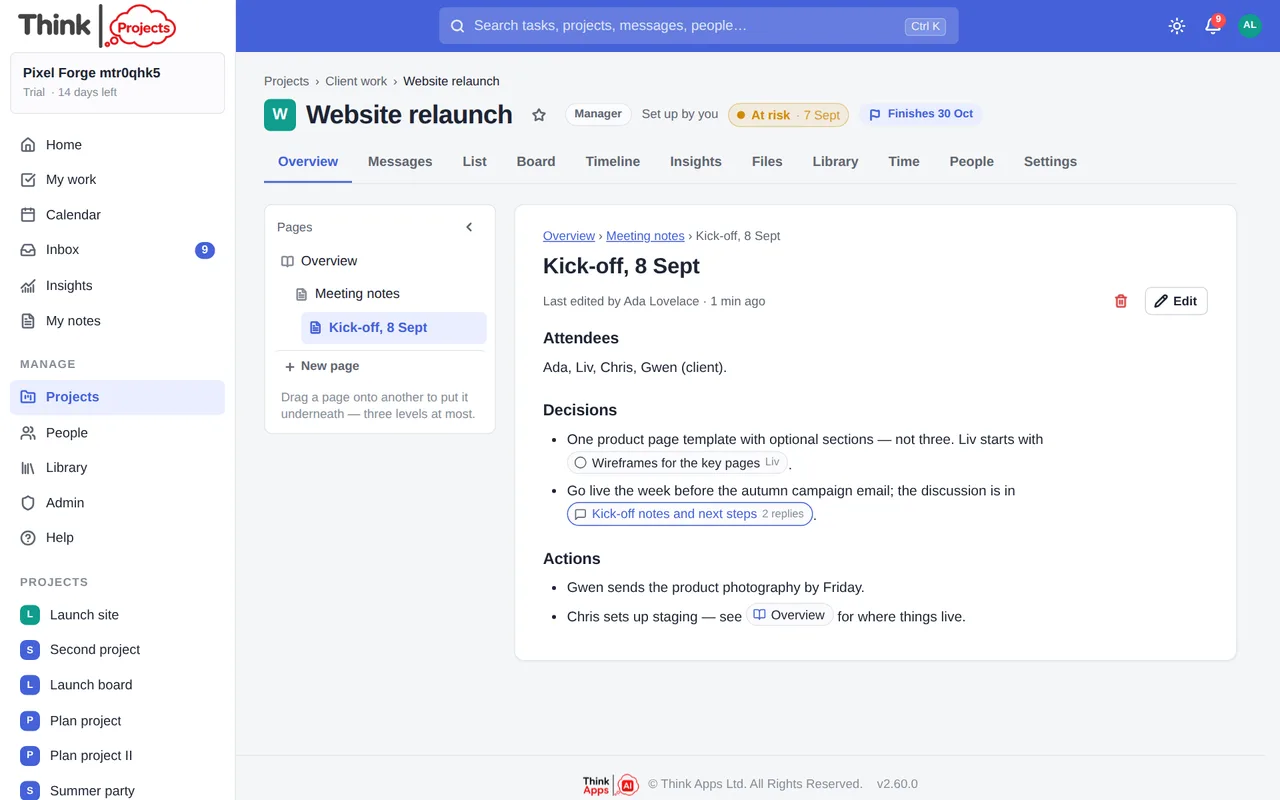
- New page at the foot of the tree makes a top-level page; the + that appears when you hover a page makes one underneath it. Give it a title and start writing.
- Drag a page onto another to move it underneath, or between two pages (a line shows where it will land) to change the order; drop it on the foot of the tree to bring it back to the top level. Moving a page takes the pages under it along. The Overview always stays first.
- A page shows where it sits above its title (Overview › Meeting notes › Kick-off), and the pages under it at the foot.
- Delete page (the bin, next to Edit) removes a page; the pages under it move up a level, and any links to it stay as plain words with a line through them — never a broken link.
- Export (the download button next to Edit) turns a page into a PDF, Markdown, plain text, the clipboard, or a Google Doc in your Drive — just like a thread. Live blocks go out as a snapshot of what they showed at that moment.
- The chevron at the top of the tree folds it away when you want the page on its own.
Anyone who can see the project can read its pages, guests included. People on the project who can post (guests aside) can add and arrange them; changing someone else's page needs editor rights, as with notes. One person edits at a time and every save is kept in the version history.
Linking to the work
While writing any page — or a message, or a comment — type [[ and a picker offers the project's pages first, then its tasks and threads (and the General library's pages). Start typing a name to narrow it, press Enter, and the link goes in. Pasting a Think Projects address (copied from the browser's address bar, or from a task's Copy link) does the same.
The reader shows each link as a live chip — the thing it points at, as it is now:
- a task with its tick (a line through it once done), and its due date or deadline, in red once missed;
- a thread with its reply count;
- a page with its title.
Chips stay right by themselves: rename the task and the chip renames; tick it and the chip ticks. Click a chip and it opens in the app. If the thing has since been deleted, the chip shows the words you typed, struck through, with no longer here.
Mentioned on
Every task and every thread gains a Mentioned on line next to Related — the pages whose words link to it — so from a task you can get straight to the meeting notes that decided it. A page shows Mentioned on at its foot too, for the pages that link to it.
Search has a Pages group of its own, each hit with its place in the tree.
Live blocks
A page can hold a block — a piece of the project shown as it is now, so the page never goes stale. While editing a page, press + Block in the toolbar, or type / on an empty line, and pick one:
- Task list — open, overdue, done or all tasks, for the whole project or one list. Tick a task here and it is ticked everywhere.
- Milestones — every milestone with its date: reached, late, or moving with the plan.
- People — who is on the project, with their job titles and roles.
- Recent decisions — the latest threads, or only those in one category (Decision, say).
- Status — the latest weekly status update: its colour, the summary, done · slipped · coming up · blockers, with a link to the thread.
- Time — hours logged this month, the total against the estimate, and who logged them.
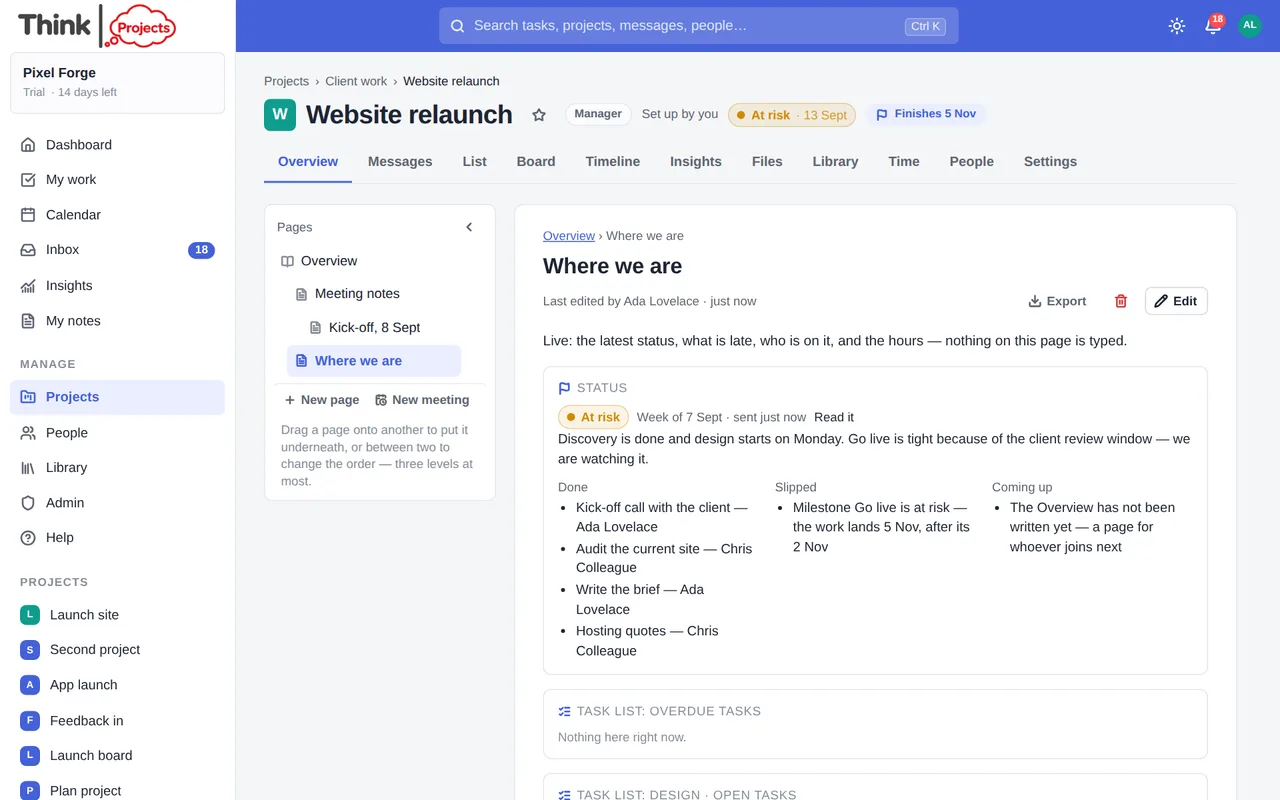
In the editor a block is a grey card with its name; the × on it takes it out. On the page it draws itself from the project each time it is opened, and refreshes when someone else changes a task or posts a thread. Blocks respect permissions: a guest sees what a guest may see. Search finds a page by its blocks' captions ("Task list: Design").
A stale Overview is easy to miss, so the Dashboard's project cards say Overview 4 weeks old once it has gone three weeks without a change (and no Overview yet to the manager of a project that has none), and the weekly status draft carries a line suggesting a refresh.
The test-data projects (Admin → Support → Test data) come with pages already written — an Overview with blocks, meeting notes, a decision log and a "Where we are" page — so you can see all of this without writing a word.
What pages are not
Pages are for the words around the work; tasks, boards and timelines stay where they are and pages point at them or show them in a block. There are no databases, formulas or live co-editing — a page is written by one person at a time, with versions as the safety net. Discuss a page in a thread and link the two.
Want to try it on your own work? Every feature on every plan, a 14-day trial, no card needed — and guests are always free.
Create a workspace