
Calendar and Inbox
The month view of everything dated, and where your notifications collect.
Calendar
Calendar shows every dated task, milestone and meeting across your projects on a month grid. Tasks sit on their due date (or their start date if that is all they have); milestones show as diamonds; meetings show at their time (click one to open it — see Meetings); anyone away that day is listed at the top of the day. If you have connected your Google or Outlook calendar (My settings → Calendar), your own meetings from it appear too, as quiet dotted items — only on your Calendar, never anyone else's.
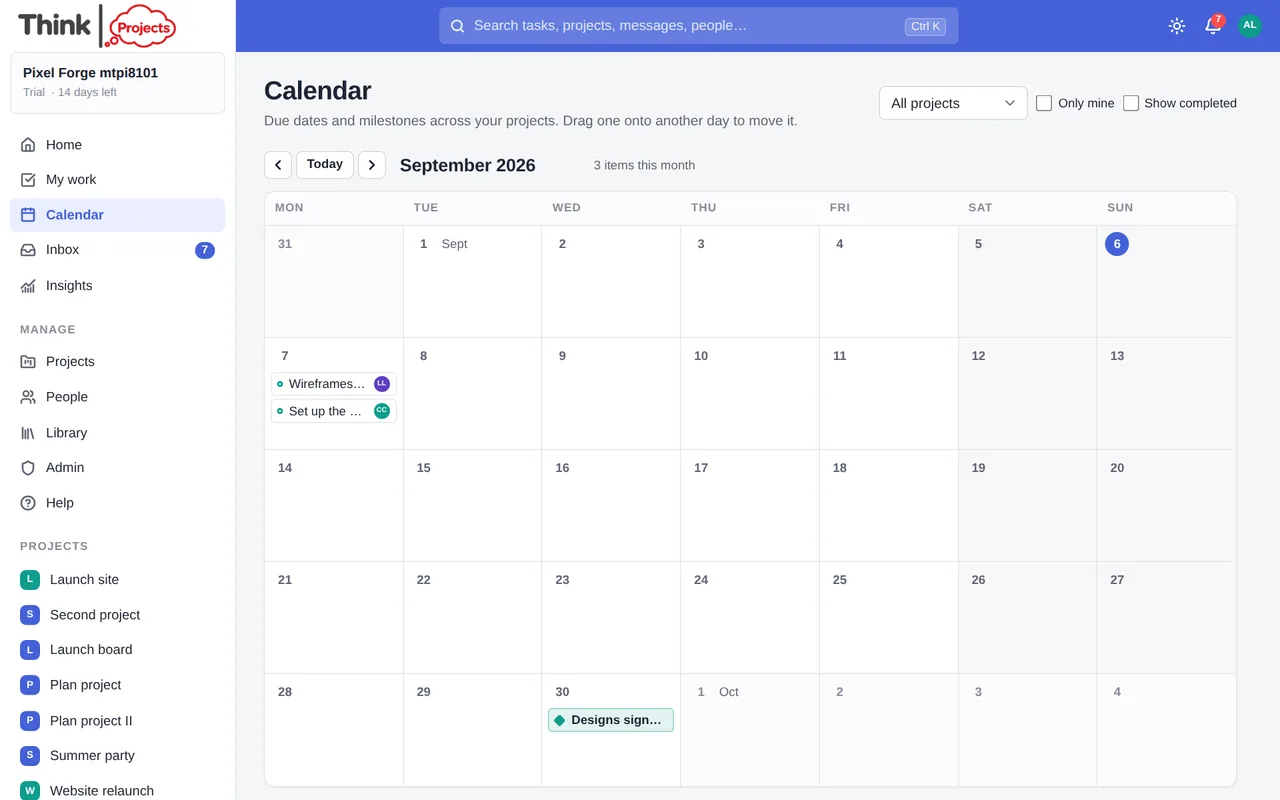
- Choose one project or all of them, tick Only mine to see just your own tasks, and Show completed to include finished ones.
- Drag a task or milestone to another day to move it. A task with a start and a due date keeps its length.
- Click a task to open it.
- The chips at the foot switch between projects.
Your calendar app
You can see all of this in Google Calendar, Apple Calendar or Outlook too. Under My settings → Calendar there are two subscription links — My tasks (yours, plus milestones and meetings on your projects) and Everything on my projects — with instructions for each calendar app. Calendars refresh every hour or so. Treat the links like passwords: anyone with one can read that calendar. For the other direction — your meetings into Think Projects, and your planned tasks written into your calendar — connect the calendar itself (see Your settings). Export PDF prints the month.
Inbox
Inbox is where notifications collect: mentions, replies on threads you follow, comments on your tasks, new messages on your projects, tasks assigned to you, and being added to a project. The bell in the top bar and the sidebar show how many are unread.
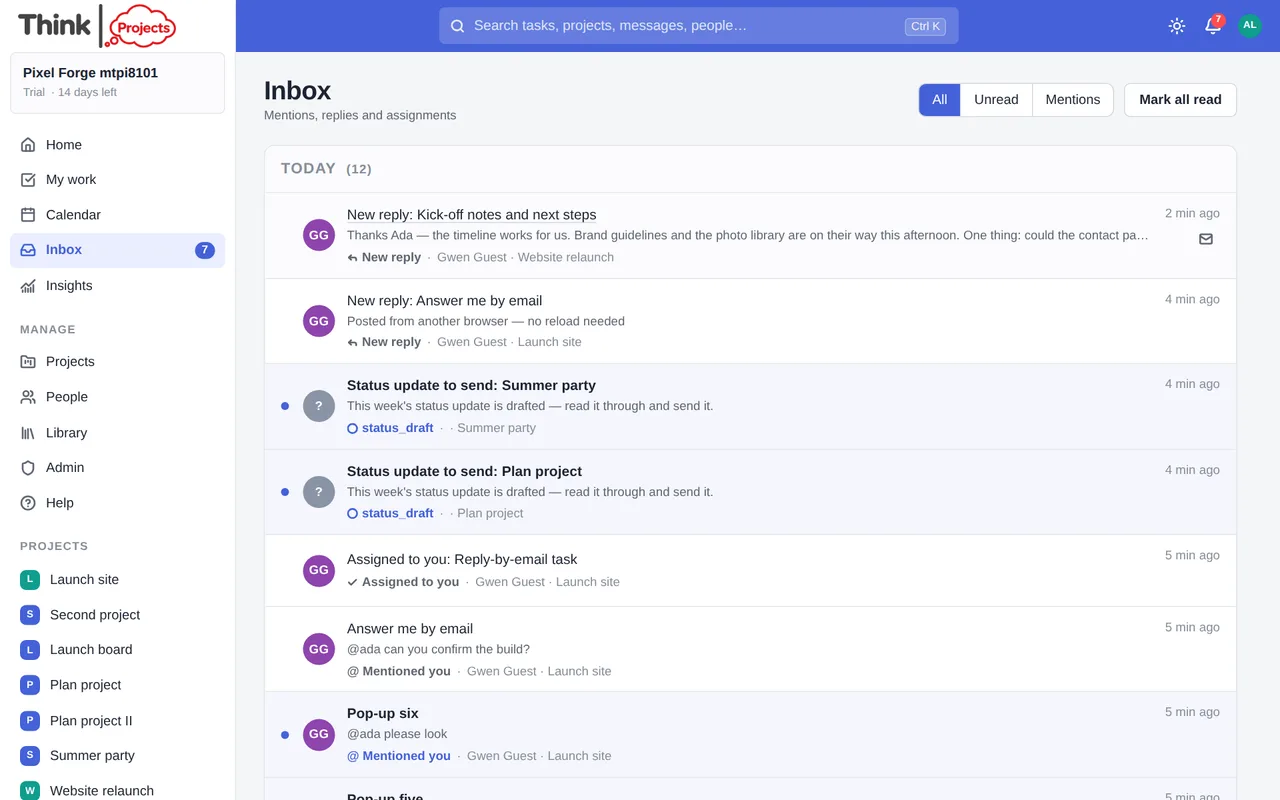
- Click a notification to go to the thing — a thread opens at the newest reply.
- Filter to Unread or Mentions, mark one as read or unread with the button on its row, or Mark all read.
- Which of these also reach you as a pop-up or an email is up to you: see Notifications.
- Snooze (the clock on a row) puts a notification to sleep until a time you choose — in three hours, this evening, tomorrow morning, next Monday, in a week, or a date and time of your own. It leaves the list and the unread count, waits in a Snoozed section at the foot of the page, and comes back to the top, unread and marked back from snooze, when the time comes. Wake now brings one back early.
Tip: g then i opens the Inbox; g then c the Calendar.
Want to try it on your own work? Every feature on every plan, a 14-day trial, no card needed — and guests are always free.
Create a workspace