Tasks across projects and saved views
One list of every task you can see, filtered any way you like, and kept as a view in the sidebar.
My work shows the tasks that are yours. Tasks in the sidebar (or g then t) shows every open task on every project you are on, whoever it belongs to — the place to ask questions that cut across projects: what is high priority and due this week?, what is tagged #client and unassigned?, what has Hollie got on?
The filter bar
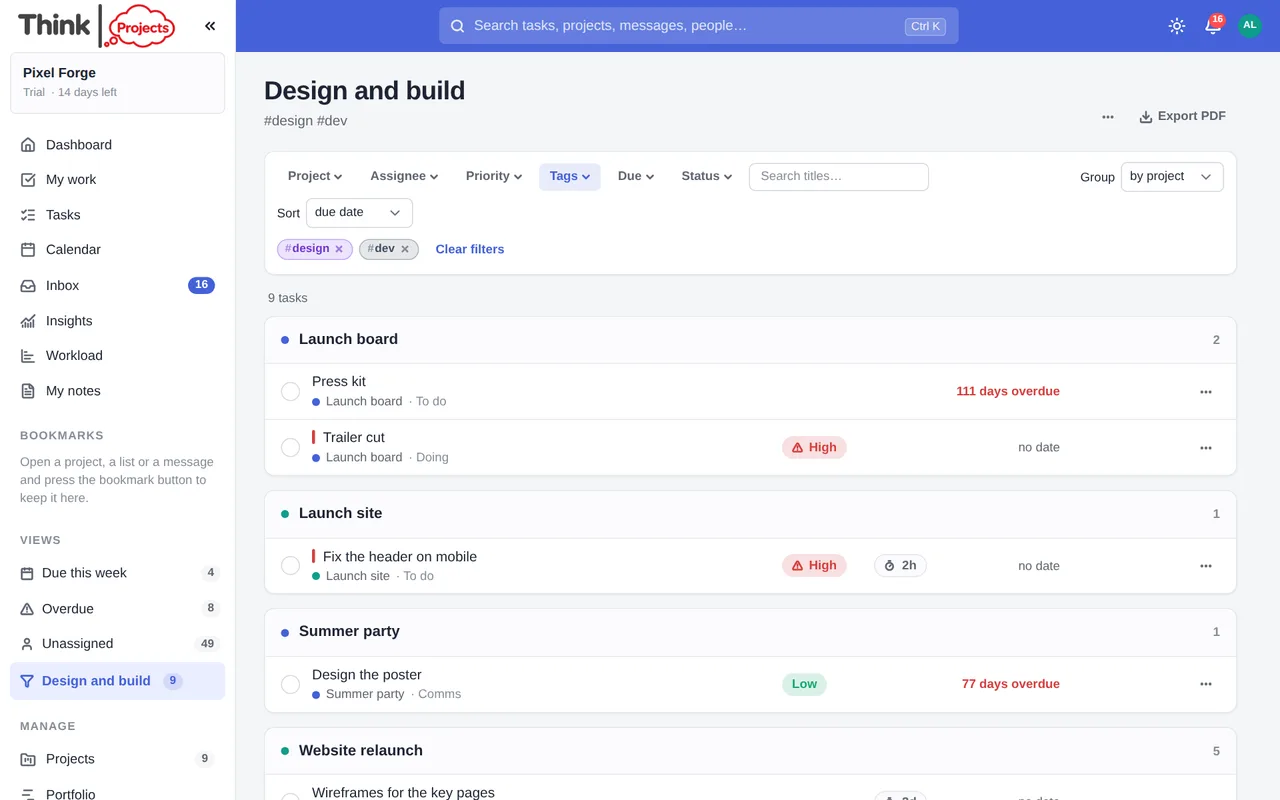
Each button opens a tick list — tick as many as you like and the list narrows as you go:
- Project — one or several.
- Assignee — Me, Unassigned, or anyone on the team.
- Priority — High, Medium, Low, or none.
- Tags — any of the organisation's tags.
- Due — overdue, today, this week, the next 7 days, the next 30 days, or no due date.
- Status — open (the default), completed, or both.
- Search — words in the title.
What you have chosen shows as chips under the bar; press a chip's × to drop that one, or Clear filters. On the right, Group the rows by project, assignee or due date (or not at all) and Sort by list order, due date, priority, when last changed, newest or title.
The rows work like My work: tick the circle to finish a task, the sun to put it on My day, and the ⋯ menu to set a priority, a due date or a snooze. Click a row to open the task in its drawer. Export PDF prints the list as you see it.
The address bar carries your filters, so a filtered list can be bookmarked or sent to a colleague as a link.
Saving a view
Once the filters say what you want, press Save view, give it a name, and it appears in the sidebar under Views, with a pill showing how many open tasks it holds right now — the pill keeps itself up to date as work changes. Click it and the list opens with those filters; change a filter and Save changes, Save as new view or Reset appear beside the name.
Three views come built in, for everyone: Due this week, Overdue and Unassigned.
The ⋯ beside a view in the sidebar has Rename, Delete, and — for administrators — Share with everyone, which puts it in the whole team's sidebar with a shared mark and the name of who shared it. Anyone can Hide a shared view from their own sidebar without affecting anyone else. A view is only a filter: two people opening the same one see the tasks each of them is allowed to see, and nothing more.
A person can keep up to thirty views of their own.
Want to try it on your own work? Every feature on every plan, a 14-day trial, no card needed — and guests are always free.
Create a workspace