
Search
Finding anything — tasks, projects, messages, people, pages and the library — and the command palette.
Press ⌘K (Mac) or Ctrl K (Windows), or click the search box in the top bar, and start typing. Results appear as you type, grouped into tasks, projects, messages, pages, people, contacts and library items — only ever things you are allowed to see. Pressing / anywhere opens the same box.
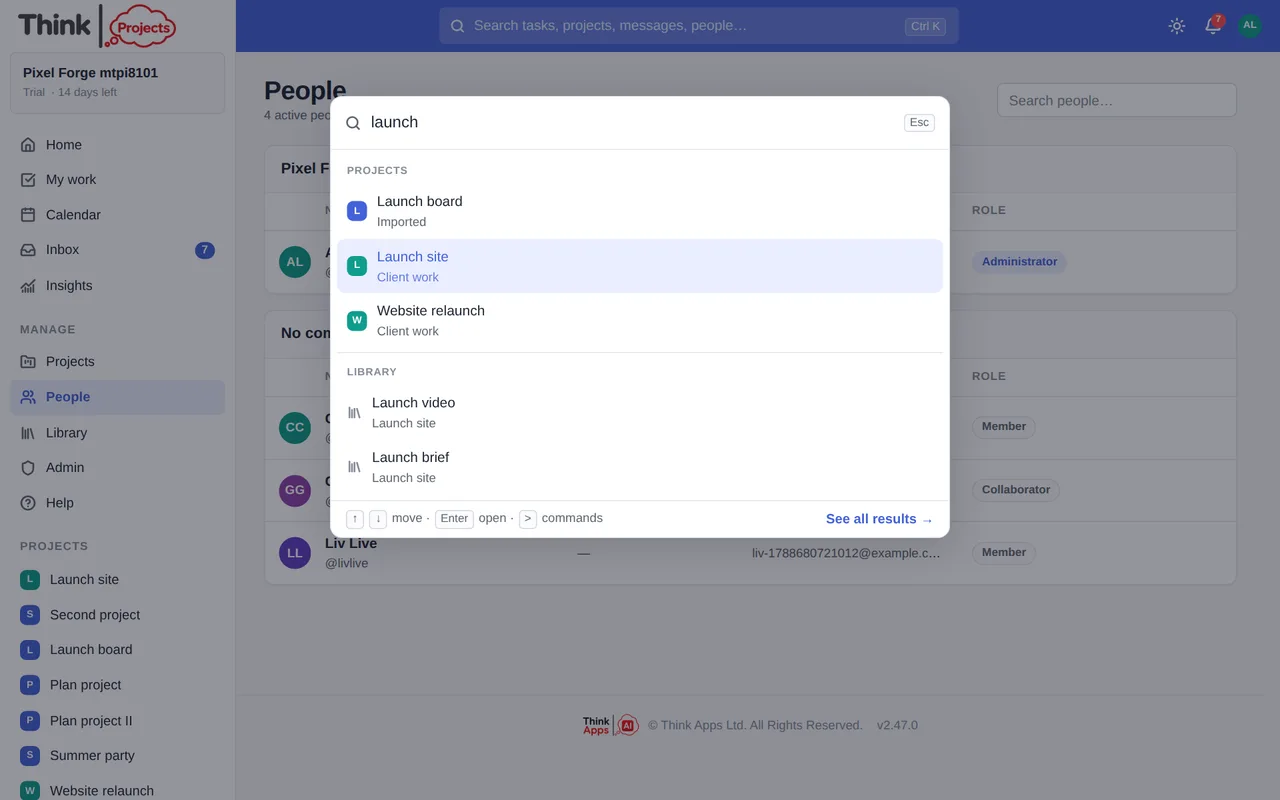
- ↑ ↓ move, Enter opens, Esc closes.
- See all results opens a full page with a tab per kind.
- Start with > to see only commands: jump to a page, create a task or message, or — with a task open — mark it done, assign it to yourself, set its priority or due date.
- A page hit shows where it sits in its project (Launch site › Overview › Meeting notes) and opens on the Overview tab.
Search covers titles and words: a task's title and description, a message and its replies, a page or note and its section, a Library item's name, a person's name and handle. It does not read inside attached documents.
Every shortcut — jumping around with g, the task list, the editors — is listed on its own page: Keyboard shortcuts.
Want to try it on your own work? Every feature on every plan, a 14-day trial, no card needed — and guests are always free.
Create a workspace