Getting started
Signing in, the way the app is laid out, and the words we use.
Think Projects keeps a team's conversations, tasks, plans and files together, one project at a time. This guide walks through every part of it. Each section on the left covers one area; read them in order the first time, or jump straight to the one you need. The same guide is public at think-projects.com/help, so you can send a page to someone who has not signed in yet.
Signing in
Go to app.think-projects.com and sign in with your email address and password, or with Sign in with Google if your organisation uses it. Tick Keep me signed in on your own computer so you are not asked again for 30 days.
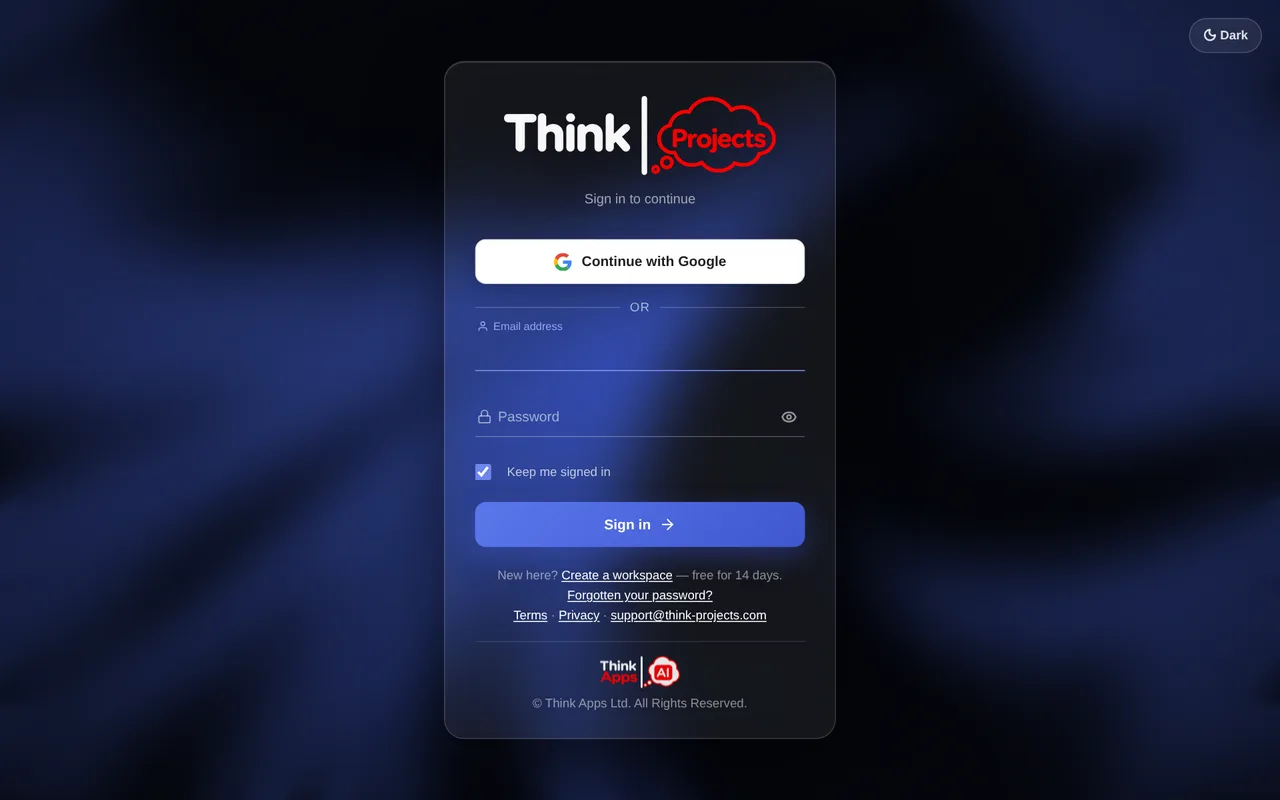
If your organisation has switched on two-factor authentication, you will also be asked for the six-digit code from your authenticator app. See Your settings for setting that up.
New here? Create a workspace on the sign-in screen gives you your own organisation with a free 14-day trial — no card needed.
The layout
Everything hangs off the same frame:
- The sidebar on the left: Dashboard, My work, Tasks, Calendar, Inbox, Insights, Workload and My notes at the top, then your own Bookmarks and saved Views, then Projects, Portfolio, People and the Library under Manage. The chevrons at the very top narrow the sidebar to a rail of icons when you want the width back, and Customise menu at its foot lets you reorder the sections and pages or switch off the ones you do not use — your menu only, and it follows you to your phone. Anything you switch off is still a search away.
- The top bar: the search box (also opened with ⌘K / Ctrl K), a running-timer chip when you have one going, the light/dark switch, the Inbox bell and your own menu.
- The page in the middle.
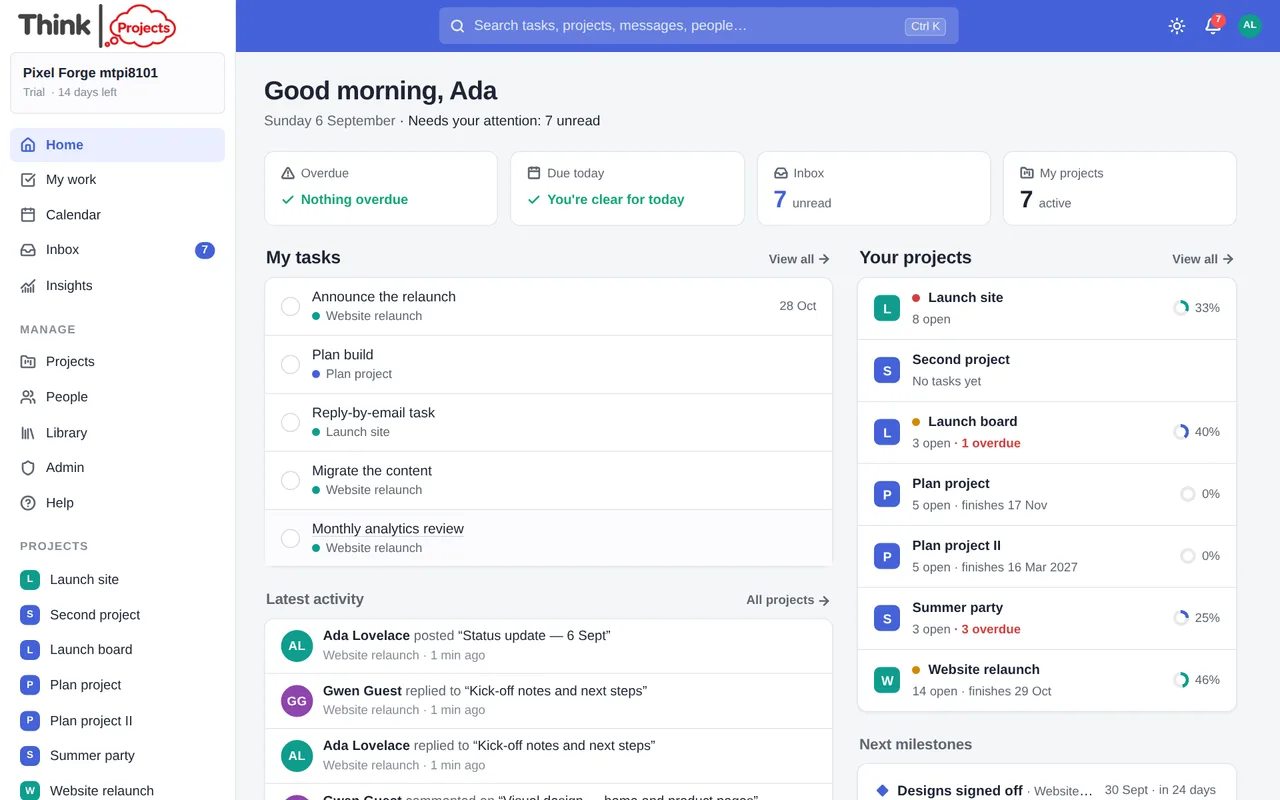
On a phone or a narrow window the sidebar folds away; the menu button at the top left brings it back.
Bookmarks
The bookmark button — in a project's header, in the header of a task, and on a note or page in the Library — keeps where you are, not just which project you are in: the task list you have chosen, the message you are reading, the page you have open. Press b to do the same thing from the keyboard, and press it again to take the bookmark off.
They sit at the top of the sidebar, in whatever order you drag them into, and nobody else sees yours. A bookmark takes its name from the thing it points at, so renaming a list renames the bookmark — unless you have given it a name of your own with the pencil, which is then left alone. If the thing it pointed at is deleted, the bookmark stays and says so rather than quietly disappearing.
Who can do what
There are two kinds of role, and it helps to know the difference.
Organisation roles are set by an administrator in the Admin area:
- Administrator — everything, including people, billing and every project.
- Member — internal staff. Can create projects and sees the ones they are on.
- Guest — a client or contractor. Sees only the projects they are put on. Guests are free and never take a seat on your plan.
Project roles are set per project, on its People tab:
- Viewer — can read, nothing else.
- Collaborator — can post messages, comment and add tasks.
- Editor — can also edit and delete other people's content.
- Manager — full control of the project, including its settings.
Administrators count as managers on every project. Whoever creates a project is its first manager.
Your first ten minutes
- Create a project from Projects → + New project. Pick a starting template or begin blank.
- Post a message on its Messages tab to say what the project is for.
- Add a few tasks on the List tab — type them in one after another.
- Invite your team from Admin → People, or add people who are already in the organisation on the project's People tab.
- Pick a theme under My settings → Appearance if you would like a different look.
An administrator of a new organisation sees a Getting started card on the Dashboard that ticks these off as they happen.
Tip: press ? anywhere to see the keyboard shortcuts, and ⌘K / Ctrl K to search or jump to anything.
Speaking instead of typing
Wherever there is a text box — a task title, a note, the search — a small microphone appears beside it as soon as the box has the cursor; the message and comment editors have one in their toolbar all the time. Press it, say what you want, and the words go where the cursor is; press it again or Esc to stop. While it is listening the button turns red and shows the words as it hears them. It listens in the language the app is set to.
It uses your browser's own speech recognition. The first time, Think Projects explains what it is about to ask, then the browser asks you to allow the microphone — choose Allow. If it was refused (or the browser never asked), a box tells you exactly where to switch it on for your browser: on an iPhone it is the ᴀA button at the left of the address bar → Website Settings → Microphone; in Chrome and Edge, the icon at the left of the address bar → Site settings → Microphone; in Safari on a Mac, the Safari menu → Settings for this website → Microphone. Chrome, Edge and Safari (including on an iPhone) can dictate; Firefox cannot, and there the button simply never appears. Think Projects never records or stores any audio when you dictate — the sound goes from your browser to its speech service, and only the text comes back. (A Voice note in a message or comment is different: that one is recorded on purpose, and attached — see Messages.)
Spelling
Every box you type words into — a task, a message, a comment, a note — is spell-checked by your browser as you go: a misspelt word gets the wavy underline, and a right-click (or a tap on a phone) offers the correction. Names are never rewritten for you; on a phone, automatic correction is left off so a person's or a project's name stays as you typed it.
Getting things out again
Nothing is locked in. Any conversation can be exported as a PDF, Markdown, plain text or a Google Doc, or copied to the clipboard with its formatting (see Messages); every view — the List, the Board, the Timeline, the Calendar, Insights, Workload, the Portfolio — has an Export that prints it to PDF fitted to the page (the Timeline also as PNG or SVG, the List and the Time tab as CSV); your calendar subscribes to your tasks; a client link shows a project to someone with no account; and the organisation's owner can download everything — the database and every file — from Admin → Organisation → Data.
Tell us what you think
Think Projects is made by two people, and we read every word. Open your name at the top right and choose Give feedback — or use the strip at the foot of any page in this guide. Three boxes, each optional: what you like, what you would like added, what gets in your way; a row of faces for how it is going overall if you feel like giving a score. Leave You can reply to me by email ticked and whoever answers can write back to you; untick it and we simply read it. Once you have used it for a week or so — a project of your own, some tasks, a colleague on board — the Dashboard asks once, gently; Not now puts it away for a month, and it never asks more than twice.
Want to try it on your own work? Every feature on every plan, a 14-day trial, no card needed — and guests are always free.
Create a workspace