
Messages
Conversations on a project: posting, replying, mentions, reactions and the editor.
The Messages tab
Messages is where a project talks. Each message is a thread with a title, and people reply underneath it, so a decision or a question stays in one place instead of being scattered across chat.
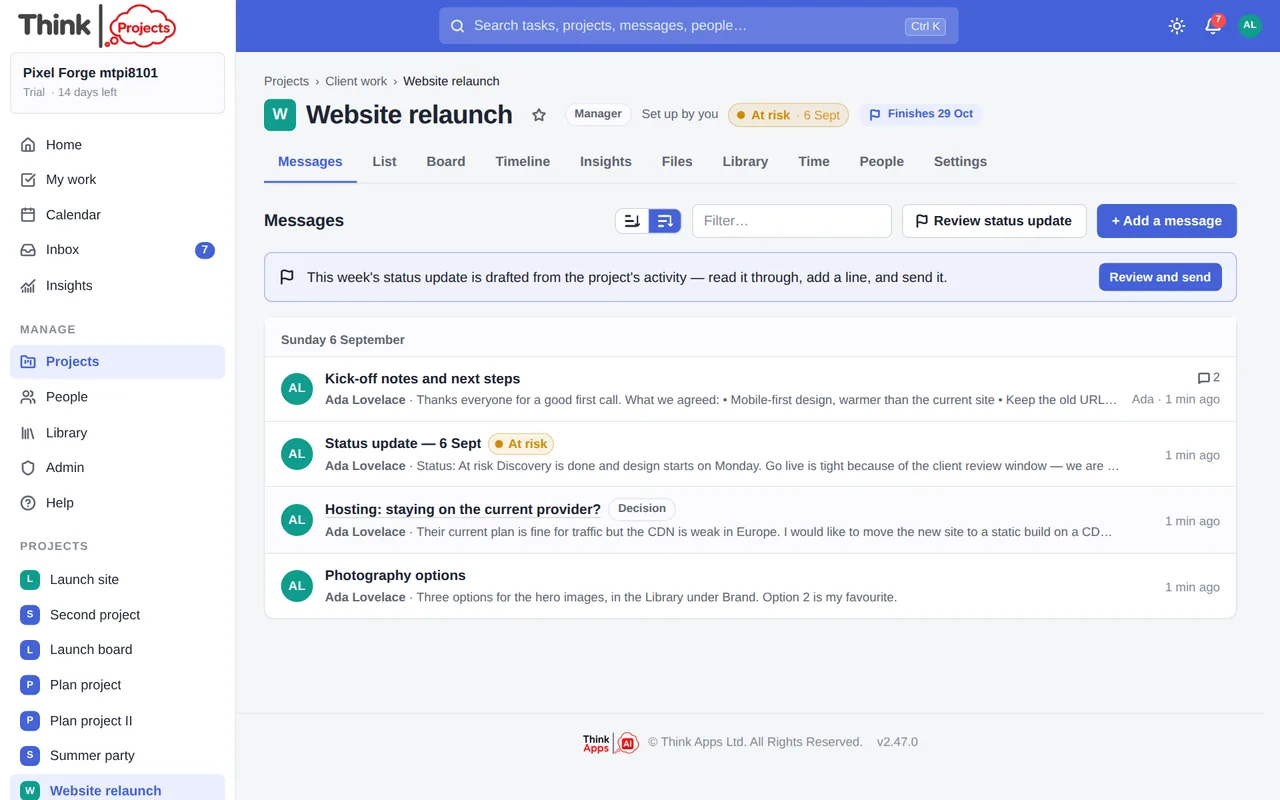
Messages are grouped by day. A blue dot marks one you have not read yet; a padlock marks a message held for review (see below); a coloured chip marks a weekly status update. The toggle at the top switches between newest and oldest first, and the filter box finds a message by title or author.
Posting a message
Click + Add a message, give it a title and write the body. Anyone who can post on the project (collaborators and above) can add a message. Under Who to tell, Everyone on the project (the usual choice) tells every member about it, following their own notification settings; Only the people I @mention keeps the message on the project for anyone to read but tells only the people you name with @ — the right choice for a note to one person that the rest of the team does not need in their inbox.
Replying
Open a message and reply at the foot of the thread. Replies keep the order they were posted in (switch to newest first with the toggle once there are several).
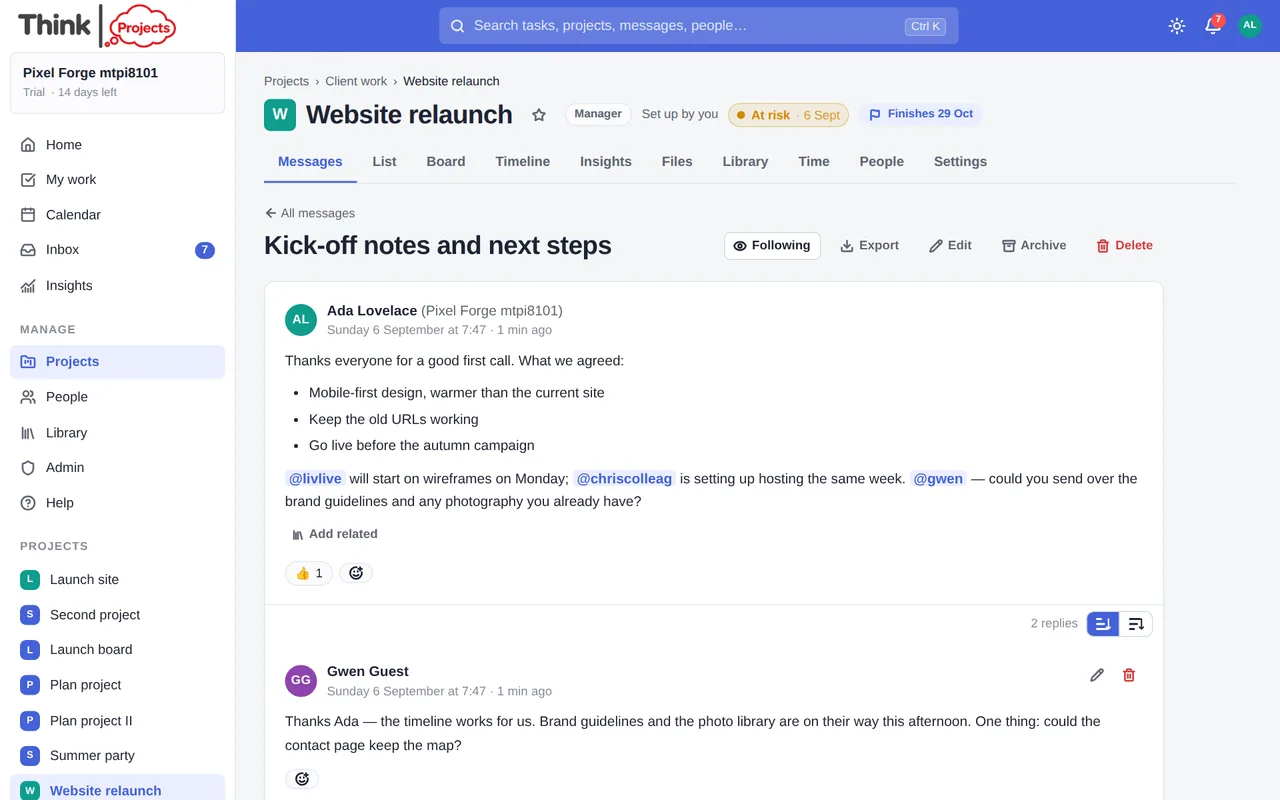
- Follow a thread to be told about every reply, even if you have not posted in it. You follow automatically when you reply.
- Edit or Delete your own messages and replies. Administrators can edit anyone's.
- Archive a message to tuck it away without deleting it — it moves to the Archived list and is closed to new replies.
Mentions
Type @ and start a name to mention someone. They get a notification in their Inbox and, if they have chosen to, a pop-up or an email. Only people on the project can be mentioned. @everyone mentions everyone who has access to the project — guests included — so use it for the things everyone needs to see, not for every message.
Reactions
Under every message and reply there are eight quick reactions: 👍 🎉 ❤️ 😄 👀 🚀 ✅ 🙏. Hover one to see who reacted.
The editor
The same editor is used for messages, replies, comments and notes:
- Bold, italic, underline, strikethrough, bulleted and numbered lists, quotes.
- Images — paste, drag in, or use the picture button. Click an image to resize it.
- Emoji and GIFs (GIFs can be turned off by an administrator).
- Links — select some words first, then press the link button or ⌘K.
- Attach files with the button at the foot. Up to ten per post, 25 MB each.
- Voice note — press it, talk, press Stop. The recording is attached to the post as audio, with a player, and the words you said are typed under a Voice note · 0:42 heading, so the note can be read without pressing play and turns up in search. While it records you see a red dot, the time and the words as they are heard; Cancel throws it away. Up to ten minutes. The words come from your browser's own speech recognition (Chrome, Edge and Safari); in a browser without one the recording still goes, just without the transcript. On an iPhone or iPad the recording goes but the words are not typed — the phone gives the microphone to one thing at a time, so it cannot record and listen at once (this is true in every browser there, Chrome included). Add a line under the note by hand if you want it searchable, or use the microphone key on the keyboard to dictate instead.
- Press ⌘ Enter / Ctrl Enter to send.
Pasting from email or Word brings the words in as plain text, so their styling does not come with them. A pasted Google Docs, Sheets or Slides link turns into a link with the document's real title.
Related items
Under a message you can attach items from the project's Library — the brief, the contract, the design file — with Add related, so anyone reading the thread has what they need to hand. See Files and Library.
Exporting a conversation
A thread can leave the app whole — for a client who is not on the project, for the record, or to become a document of its own. Open the thread and click Export:
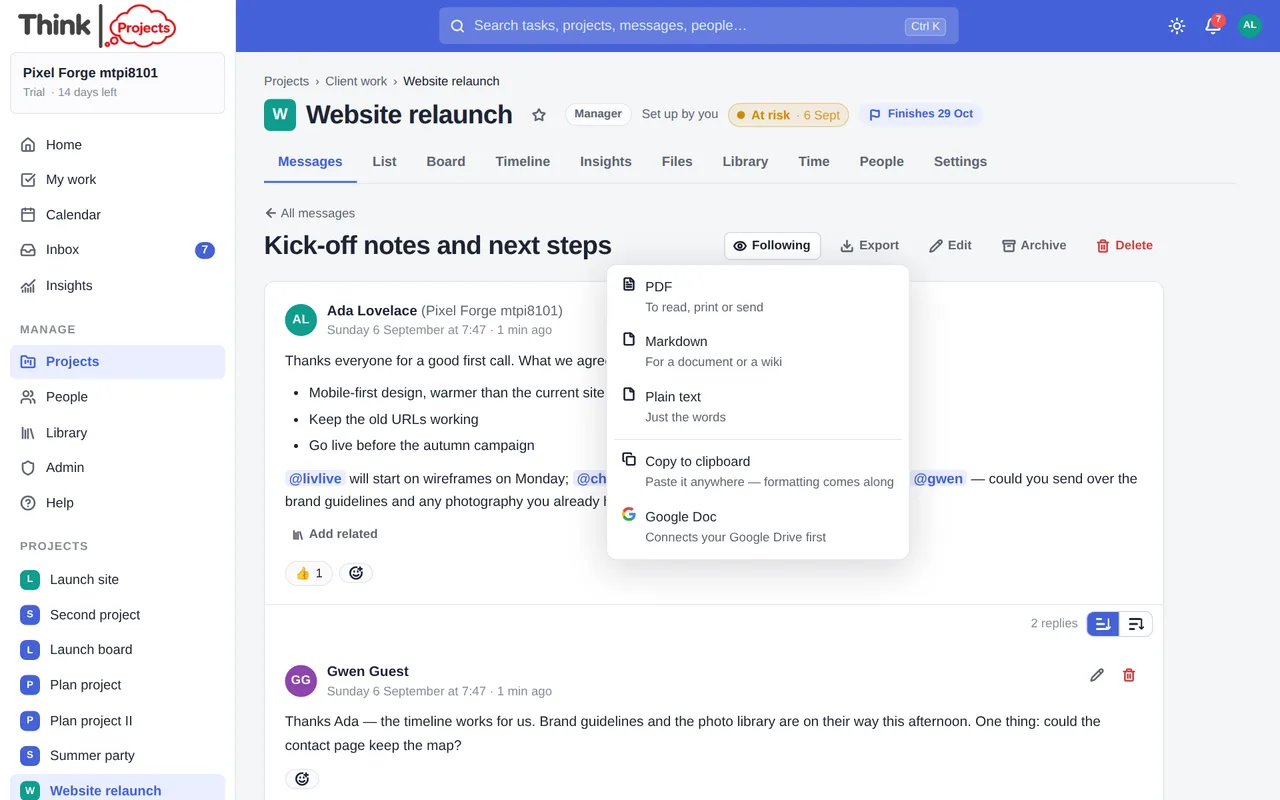
- PDF — to read, print or send. Pictures pasted into the thread are included; attachments are listed with links.
- Markdown — for a document, a wiki or a notes app.
- Plain text — just the words.
- Copy to clipboard — paste the whole conversation into an email, a document or a note; the formatting comes with it.
- Google Doc — a new document in your own Google Drive, ready to edit and share.
The first time you choose Google Doc you are sent to Google to allow it. Think Projects asks only for permission to create documents — it can never see the rest of your Drive — and you can disconnect it at any time under My settings → Sign-in & security. After that, each export makes a new Doc straight away.
Every format carries the title, the project, who wrote each post and when, the replies in order, and a link back to the thread. Anyone who can see the project can export its conversations.
Automatic check-ins
Some questions are worth asking every day: What did you work on today? Is anything in your way? On Fridays, What went well this week? Under Project Settings → Automatic check-ins, an editor or manager sets one up: the question, the days, the time (in their own time zone) and who is asked — everyone on the project except guests, or the people ticked. When the time comes, the question goes out as a message in the project (with a Check-in label and the date in its title), and each person asked gets a nudge in the app, as a pop-up and by email with an Answer button. Answers are replies on that thread, written in the app or by replying to the email, so everyone reads them in one place. Ask now sends a round outside the schedule; Pause stops it without losing it; deleting a check-in keeps the threads it made. Up to ten per project.
Copy a link
Copy link at the top of a thread puts its address on the clipboard, for pasting into another message, an email or a note; whoever opens it lands on the thread (signing in first if they need to). Tasks have the same button in their drawer.
Reply by email
When you receive a notification email about a message, you can simply reply to the email. Your reply is posted to the thread as you. Quoted text and signatures are stripped automatically. Reply from the same email address the notification went to.
Email conversations with people outside
A project's email address (Copy email address at the top of its Library; Copy CC address above its Messages gives the -inbox version) is also how people who are not in your workspace reach the project. When a client, supplier or customer emails it, their email becomes a thread on the Messages tab with them as the correspondent: the subject is the title, their email is the first post, attachments are the thread's files, and the thread shows By email with their name and address at the top. They are added to Companies & contacts if they are not there already, so the company page lists every conversation with them. The project's managers are told an email has come in.
Replying. Reply on the thread as you would to any message and your reply is emailed to them — from your name at your organisation, with your reply first and their message quoted under it, files attached. Their answer comes straight back onto the thread, quoted history stripped, and whoever has replied is told. They never see the app and need no account; from their side it is an ordinary email exchange.
Internal notes. Tick Internal note in the reply box to keep something between you — it stays on the thread with a not sent chip and is never emailed.
Where it stands. The bar at the top has a status — Open (waiting on us), Waiting on them (set automatically when you reply) and Done — and a who is looking after it pick. The Messages tab's Email button filters to these conversations and counts the open ones; the Dashboard lists the conversations waiting for a reply, and marks any that have waited more than two days.
Starting one yourself. Writing to a client from your own mail app? CC the project's -inbox address (copy it from above the messages list) and the email starts a conversation with them, written by you, so their reply lands in the project. A member emailing the plain address on their own still files it in the Library, as before.
Saved replies. Answers worth reusing can be kept for the whole team. In any reply box (threads, task comments, new messages) the Replies button — or typing / in an empty box — opens the list: search, pick one, and it goes in with {{first name}}, {{name}}, {{project}}, {{me}} and {{organisation}} already filled in from the thread (the correspondent's name on an email conversation, the thread's author otherwise). To save one, use the bookmark on any post you or a colleague wrote: the names in it are swapped for placeholders, you give it a title, and it is there for everyone. Administrators (and whoever saved it) can edit or remove them under Admin → Organisation → Work → Saved replies, which also shows how often each is used. Guests never see them.
Who you are talking to. Companies & contacts lists, under each contact, every email conversation with them and where it stands — the history with a customer. Think Projects staff, on the support console, also see a chip on a conversation saying which workspace and plan the correspondent belongs to.
Blocking. A manager can Block a sender from the bar; their mail is dropped from then on. The list is under Admin → Organisation → Security & support → Blocked senders, where an administrator can add or remove addresses.
Messages held for review
When you import a Teamwork.com backup, some threads may arrive with a padlock. Those were marked private in Teamwork, and Teamwork's backup file says only that a message was private — never who it was private to. Rather than guess, Think Projects holds them: only the project's managers and your administrators can see a held message, anywhere. It stays out of the messages list, search, exports, the Dashboard activity list, the weekly digest and every notification for everyone else.
A manager opens the thread, reads it, and decides. Open to the project on the amber banner makes it an ordinary message that everyone on the project can read — clients and guests included, so read it first. This cannot be undone, and archiving is not a way back: an archived message is tucked out of the main list and closed to new replies, but anyone on the project can still open it from Archived, find it in search, export it and download its files. Deleting is the only thing that puts a message beyond reach.
Nothing else in Think Projects creates a held message; there is no "private" tick when you write one.
Want to try it on your own work? Every feature on every plan, a 14-day trial, no card needed — and guests are always free.
Create a workspace