
People, companies and guests
Who is in the organisation, who is on a project, and how clients take part.
The People page
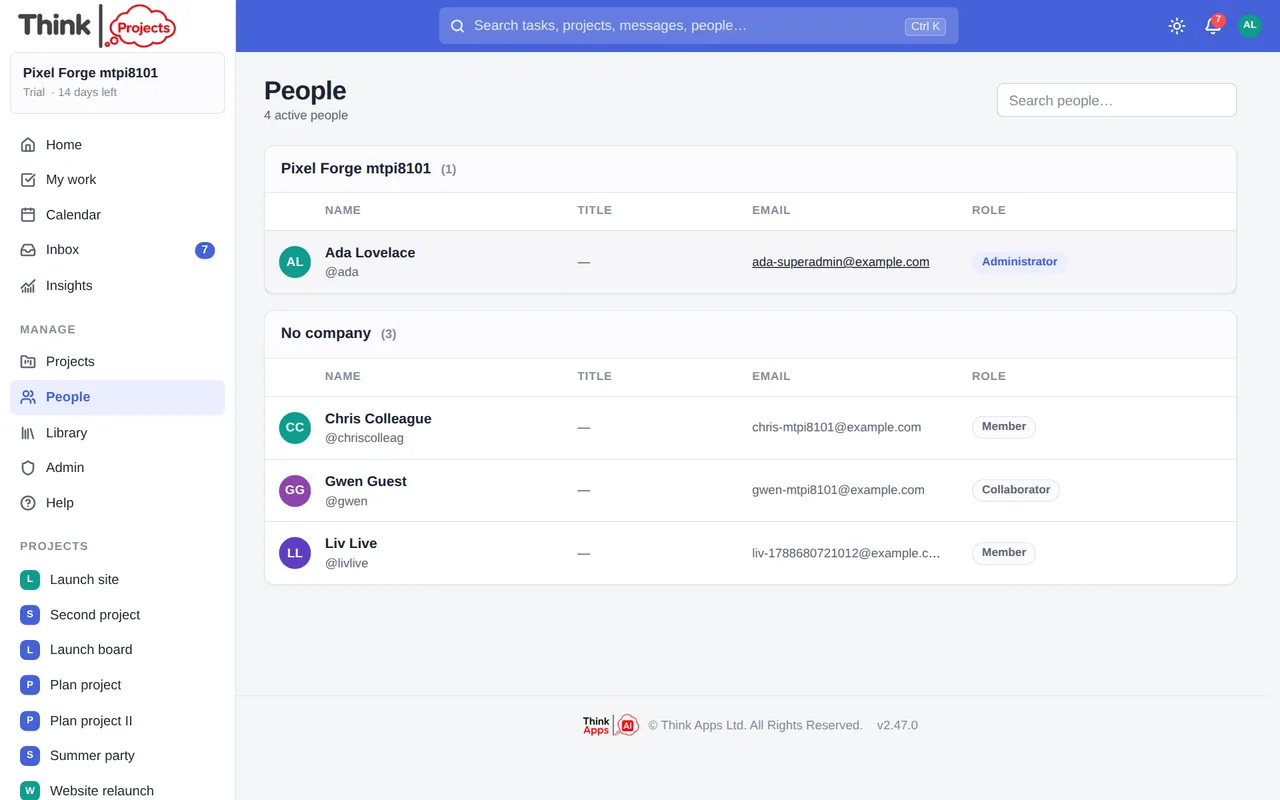
People lists everyone in the organisation, grouped by company, with their job title, email, role and — if they are away in the next fortnight — when. Search by name, email, company or handle.
Adding people to a project
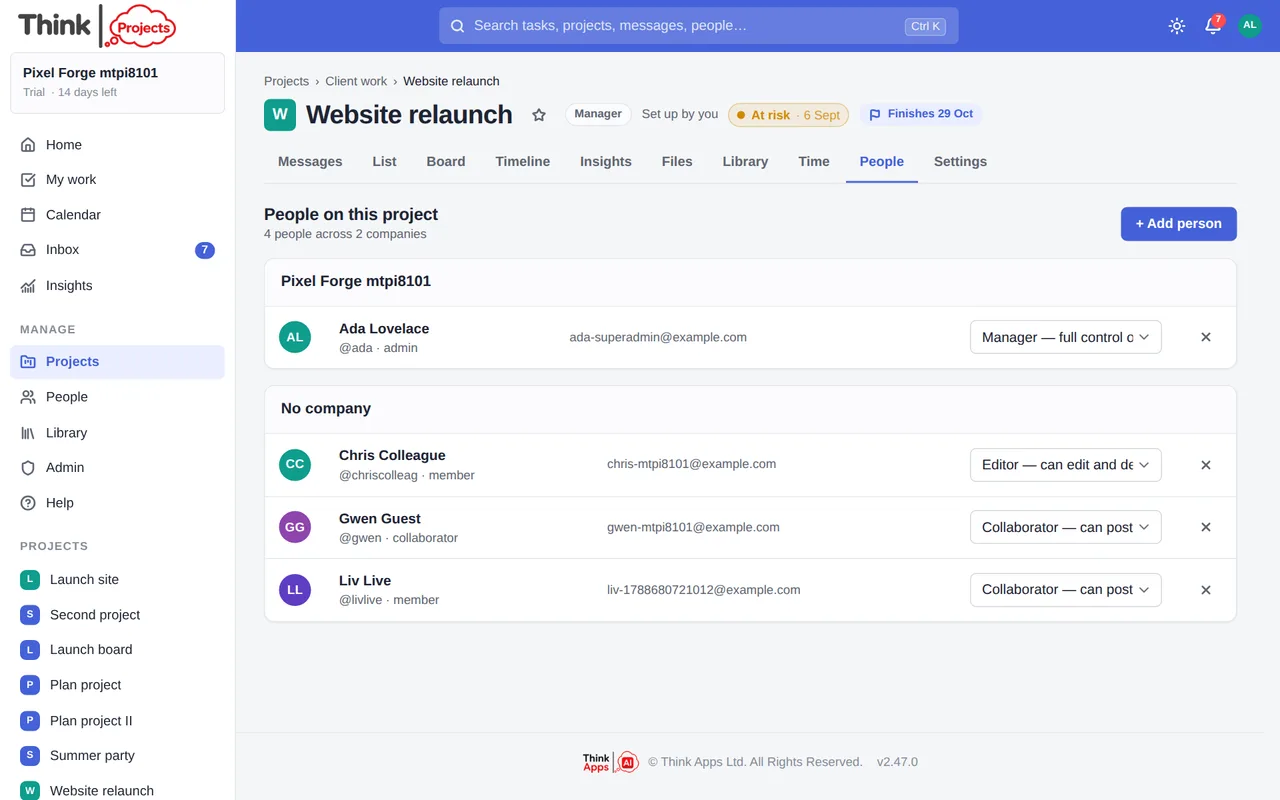
A project's People tab shows who is on it and their project role. A manager can + Add person from the people already in the organisation and set their role: Viewer (read only), Collaborator (can post and comment), Editor (can also edit and delete content) or Manager (full control). Change a role with the dropdown, or remove someone with the × — they keep their account, they just leave this project.
Being added to a project sends a notification, so the person knows where to look.
Inviting someone new
Administrators invite people from Admin → People → Invite by email. Choose what they join as:
- Member — part of the team; can create projects and sees the ones they are on.
- Administrator — plus manage people, companies, billing and every project.
- Guest — a client or contractor. Sees only the projects you tick. Guests are free and never take a seat on your plan.
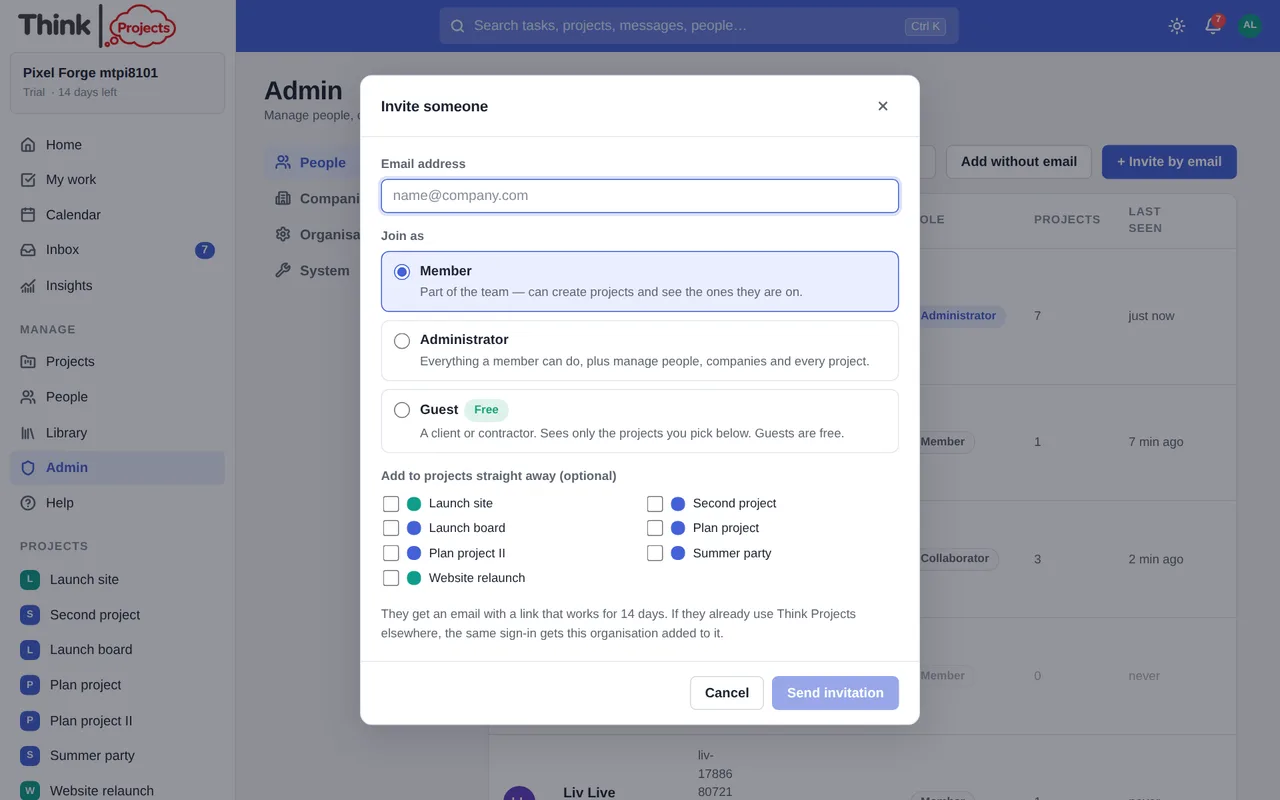
They get an email with a link that works for 14 days. If they already use Think Projects with another organisation, the same sign-in gets this one added to it.
An administrator can also Add without email — a person with a temporary password, handy for someone without a working inbox yet.
Working with clients
Guests see only their projects: no other projects, no General library, no contacts, and only the people on the projects they share with you. Within a project their project role decides what they can do — a client who should read but not post is a Viewer; one who should comment and approve is a Collaborator.
Companies (Admin → Companies & contacts) group people. Mark your own company as Internal; the rest are the clients and suppliers you work with. You can also keep contacts — people at those companies who have no sign-in yet — and invite one as a guest with a click when the time comes.
Time off and hours
Everyone can add their own time off under My settings → Calendar; an administrator can add it for anyone from Admin → People → ⋯ → Time off…, and can give a part-timer their own working hours there too. A project's People tab says who is away in the next month, and the plan, the Calendar and Workload all allow for it.
When someone leaves
Disabling or deleting a person who still holds work opens a hand-over: their open tasks, the projects they manage, the milestones they own and their upcoming time off, with a colleague to pass it all to (or leave unassigned). Their messages stay, shown as Removed user if the account is deleted.
Seeing the app as someone else
An administrator can View as another person from the People page or Admin → People. It is read-only — a way to check what a client actually sees — and a banner across the top reminds you until you return to your own account.
Want to try it on your own work? Every feature on every plan, a 14-day trial, no card needed — and guests are always free.
Create a workspace