
Time tracking
Timers, logged hours, the Time tab and the CSV export.
Time tracking is on by default. An administrator can switch it off for the whole organisation under Admin → Organisation → Work → Features; the Time tab and timers then disappear, and any logged time comes back if it is switched on again.
Logging time on a task
Open a task. In its Time block:
- Start timer runs a clock on this task. A chip in the top bar shows it on every page, with a stop button. Starting a timer on another task stops the first one and tells you. You can only have one running at a time.
- + Log time records time by hand: how long (
1h30,45m,0.5d), the date, whether it is billable, and a note.
The block shows what has been logged against the estimate — 2h 30m of 4h estimated — with a bar that turns to a warning when the estimate is passed.
The Time tab
The project's Time tab adds it all up.
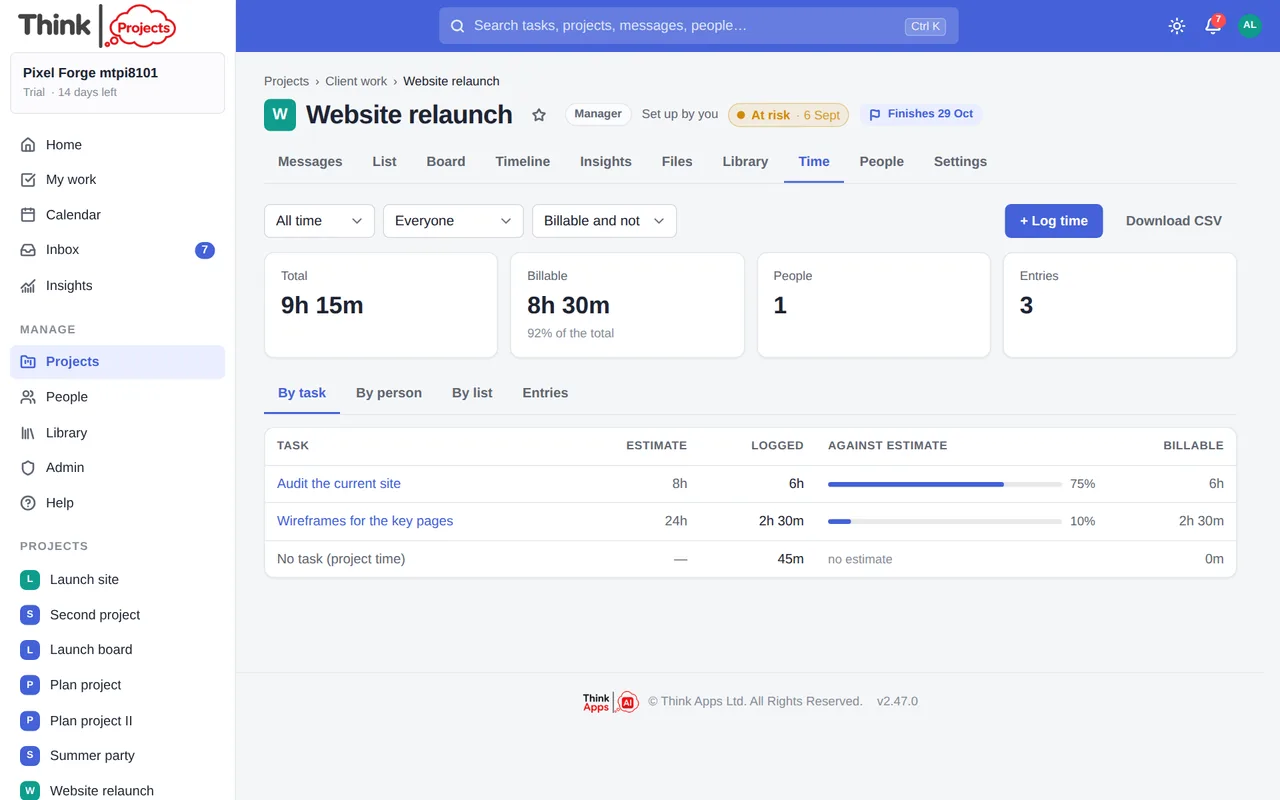
- Choose a period (this week, last week, this month, last month, all time, or your own dates), a person, and billable or not.
- Four totals: Total, Billable, People, Entries.
- Views By task (logged against estimate), By person, By list, and the full list of Entries.
- + Log time against a task or against the project in general.
- Download CSV gives a spreadsheet of the entries for invoicing or reporting.
Everyone sees the Time tab on their projects; you can delete your own entries, and a project manager can delete any.
Durations
Wherever a duration is typed — estimates, time entries — the same shorthand works: 90m, 2h, 1.5d, 3w, 2:30, 1h30, 1d 4h. A bare number means hours. A day and a week follow the organisation's working week.
Want to try it on your own work? Every feature on every plan, a 14-day trial, no card needed — and guests are always free.
Create a workspace