
Meetings
Paste the agenda, take notes under each section as the meeting runs, turn any line into a task or a decision — and the minutes write themselves and go out to everyone.
Meeting notes are where good intentions go to die: the actions end up in a document nobody opens again. In Think Projects a meeting is a page with a shape — an agenda, notes under each item, the decisions, and the actions as real tasks in the project, owned and dated, ticked off where the work lives.
Starting one
Open a project's Overview tab and press New meeting at the foot of the pages tree (or the + on the Meetings page once it exists). Give it a title, a date and time, how long, and where (a room, or the link to the call). Tick the attendees from the project's people, and type a name — with an email if you want them to get the minutes — for anyone outside the app: a client, an accountant, a supplier.
Then paste the agenda. It is understood as it lands:
9.30am Finance
Financial Report: August
[Cashflow check](https://…)
Dividends/Pensions

9.50am Management
Trademarks:
* Trademarks status report
Staff review dates
A line that starts with a time (9.30am, 14:00) or a heading starts a section; the lines under it are its items; a bullet under a plain line is a sub-item of it; links are kept as links. Pasting from a Google Doc or an email keeps its headings, bullets and links too. Plain text and bare lists work as well — a preview under the box shows the sections it found before you press Create meeting.
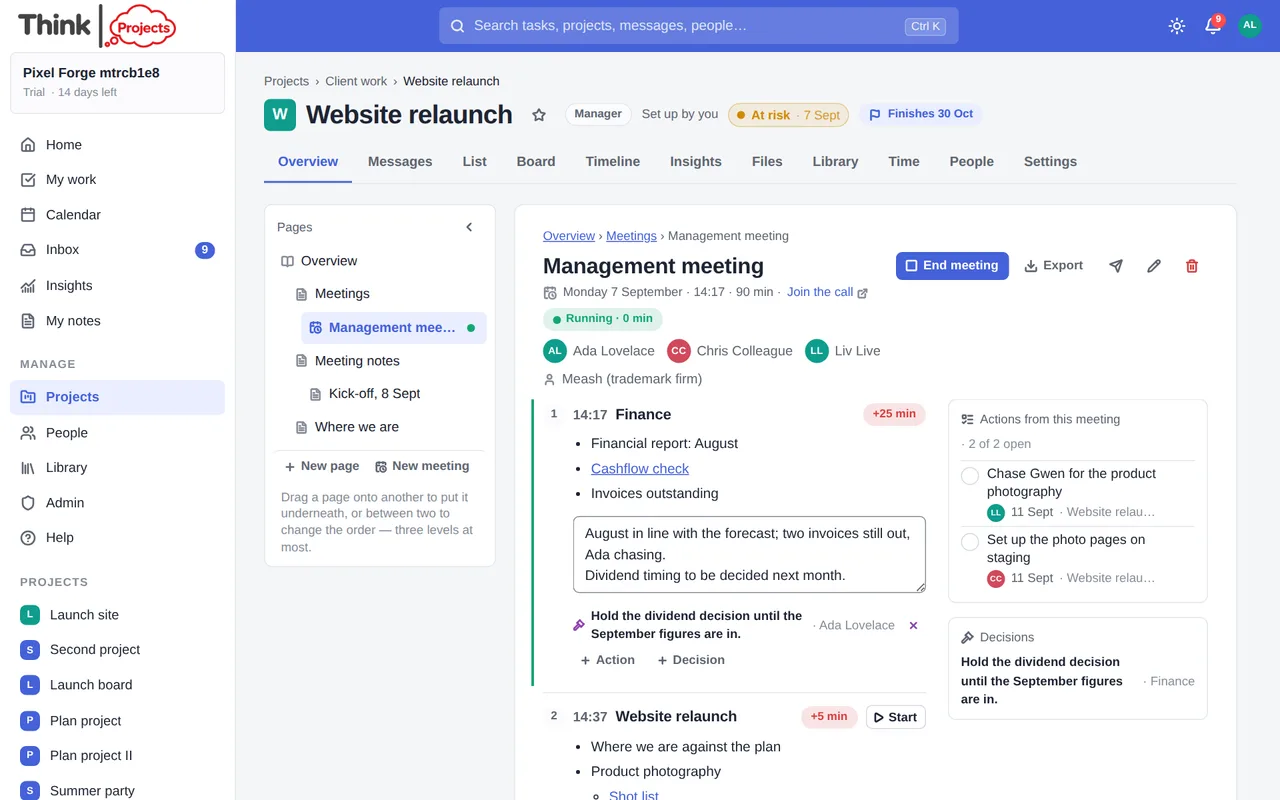
Meetings sit under a Meetings page in the project's tree, newest first, and on the Calendar at their time (and in your calendar feed, so your phone knows too).
Running it
Press Start meeting when it begins. Each section has a notes box — type as you go, or dictate with the microphone. The notes save as you type. Press Start on a section as you reach it and a small chip says how far behind (or ahead of) the agenda you are: +15 min in red when the 9.50 section began at 10.05.
Any line of the notes can become work:
- Select the words and press Make a task. The task is created in the project with a link back to the meeting. "Chris to send the report by Friday" guesses the title (Send the report), the owner (Chris, if he is on the project) and the date (Friday); change anything before you press Create task. Tasks can only be assigned to people in the app — an action for someone outside is noted in the minutes and, if you want it chased, becomes a task for whoever on your side is chasing it.
- Select the words and press Mark as decision, or + Decision under a section, to record what was agreed and by whom.
- + Action under a section makes a task without selecting anything.
The rail on the right shows every action from this meeting as the tasks stand now — tick one there and it is ticked everywhere; tick it in the task list and the meeting knows. Anyone who can post on the project (guests aside) can run a meeting; guests can read it.
Afterwards
End meeting closes it and, unless you switched it off when creating the meeting, emails the minutes to every attendee with an address — decisions, actions with their owners and dates, and the notes under each section, with a link back to the meeting. The envelope button sends them again at any time.
The minutes are also the meeting's page: search finds a meeting by any word in its notes or decisions; a task made from a meeting shows it under Mentioned on; and the page exports like any other (PDF, Markdown, text, Google Doc). Only the app writes that page — edit the meeting, not the minutes.
The details (title, time, attendees, and a fresh agenda) can be changed with the pencil at any time. Deleting a meeting removes its page; the tasks made from it stay in the project.
Coming next
Pasting a transcript or an AI summary (from Gemini, Granola, Otter, Zoom or Teams) and having the app pull out the actions and decisions for you to review; recurring meetings that start from last time's agenda with the open actions carried forward.
Want to try it on your own work? Every feature on every plan, a 14-day trial, no card needed — and guests are always free.
Create a workspace